【学习目标】
- 理解Text组件只读展示的核心定位,明确与可编辑文本组件(TextInput/TextArea)的边界;
- 掌握Text基础样式、Span混排、排版溢出、交互事件、自适应字号等核心能力及底层规则;
- 熟练运用Text属性完成样式定制、交互绑定、文本选择等实战开发,解决热搜榜、可复制文本等典型场景问题;
- 独立实现文本展示的各类个性化、适配性需求。
一、Text组件核心认知
1.1 组件定义与定位
Text是鸿蒙ArkUI中用于展示只读文本的基础UI组件,是界面文字信息的核心载体,与TextInput/TextArea的核心区别是无编辑能力,仅聚焦文本展示,同时具备三大特性:
- 只读性:仅用于文本展示,无任何编辑、输入能力;
- 灵活性:支持单行/多行展示、样式定制、多格式混排、基础交互、系统原生文本选择;
- 适配性:可通过属性控制溢出、行高、对齐、自适应字号,完美适配不同屏幕尺寸。
1.2 典型适用场景
场景类型具体示例核心应用要点静态文本展示页面标题、说明文字、标签基础样式配置 + 排版优化多格式文本展示价格标签、强调文案Span子组件实现多样式混排长文本展示协议内容、商品详情溢出处理 + 1.5~2倍行高优化轻交互文本可点击提示、文本链接交互事件绑定 + 视觉可操作标识可复制文本验证码、链接、编号copyOption配置系统原生选择能力自适应文本卡片动态文案、自适应标题minFontSize/maxFontSize组合适配特殊格式文本热搜榜、状态标签constraintSize + 溢出精准控宽二、工程结构
创建TextApplication工程,基于鸿蒙API 21 / Stage模型,核心目录结构清晰划分页面与功能,便于分模块学习调试:- TextApplication/
- ├── AppScope/
- │ └── app.json5 // 应用全局配置
- ├── entry/
- │ ├── src/
- │ │ ├── main/
- │ │ │ ├── ets/
- │ │ │ │ ├── entryability/
- │ │ │ │ │ └── EntryAbility.ets // 应用入口
- │ │ │ │ ├── pages/ // 所有功能演示页面
- │ │ │ │ │ ├── Index.ets // 导航主页面(跳转各示例)
- │ │ │ │ │ ├── TextBasicPage.ets // 基础样式演示
- │ │ │ │ │ ├── TextSpanPage.ets // Span混排演示
- │ │ │ │ │ ├── TextLayoutPage.ets // 排版与溢出演示
- │ │ │ │ │ ├── TextEventPage.ets // 交互事件演示
- │ │ │ │ │ └── TextAdvancedPage.ets // 进阶能力演示
- │ │ │ ├── resources/ // 图片、字体等资源目录
- │ │ │ └── module.json5 // 模块配置
- │ └── build-profile.json5 // 模块构建配置
- └── build-profile.json5 // 工程全局构建配置
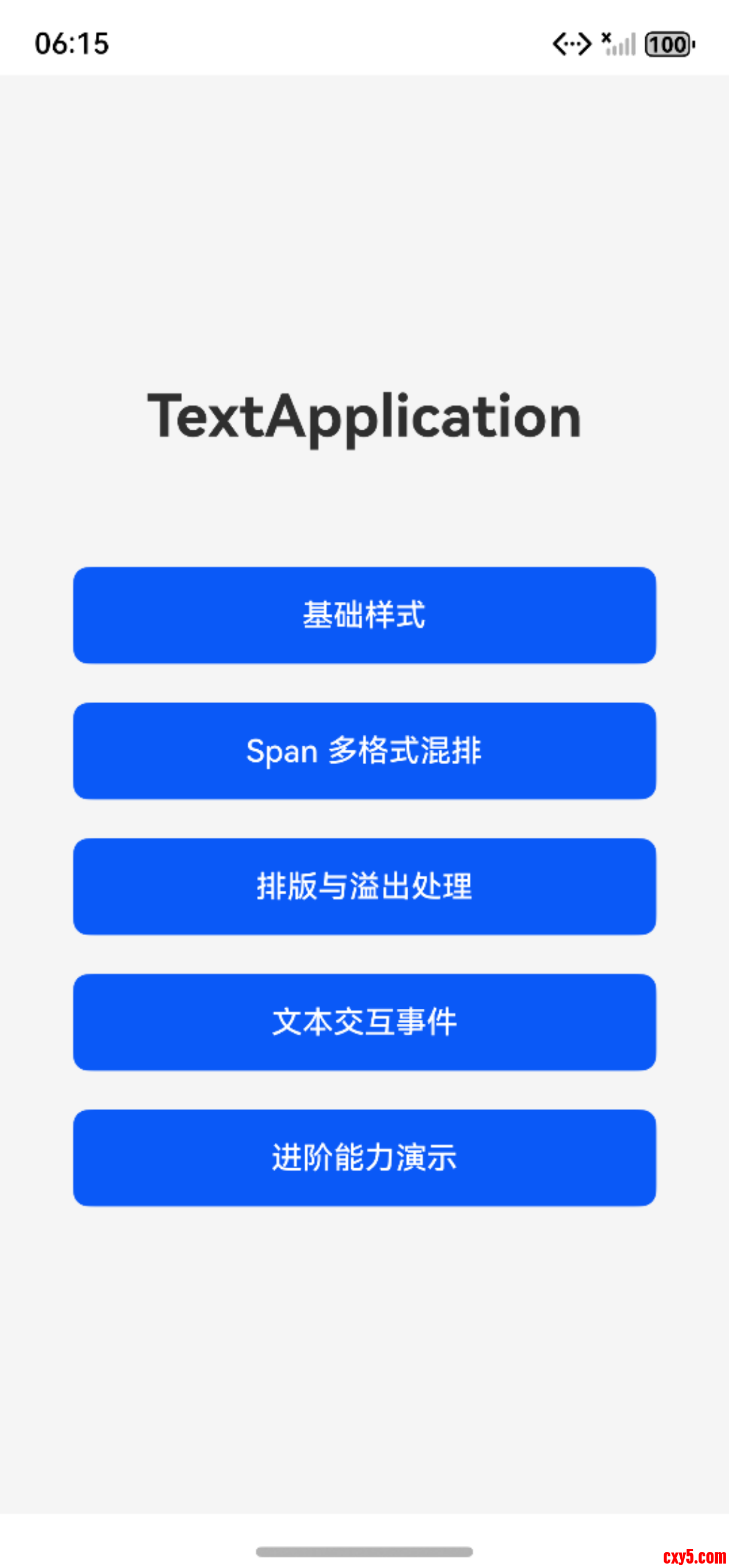
工程入口页,提供所有功能演示页面的跳转入口:- import { router } from '@kit.ArkUI';
- interface RouterButton {
- title: string; // 按钮显示文本(必选)
- url: string; // 路由跳转路径(必选)
- }
- @Entry
- @Component
- struct Index {
- // 跳转按钮配置数组,统一管理所有功能页面
- private buttonList: RouterButton[] = [
- { title: "基础样式", url: 'pages/TextBasicPage' },
- { title: "Span 多格式混排", url: 'pages/TextSpanPage' },
- { title: "排版与溢出处理", url: 'pages/TextLayoutPage' },
- { title: "文本交互事件", url: 'pages/TextEventPage' },
- { title: "进阶能力演示", url: 'pages/TextAdvancedPage' }
- ];
- build() {
- Column({ space: 20 }) {
- Text("文本显示组件Text核心讲解与实战演示")
- .fontSize(20)
- .fontWeight(FontWeight.Bold)
- .margin({ bottom: 40 });
- // 遍历生成跳转按钮,url作为唯一标识避免渲染错乱
- ForEach(
- this.buttonList,
- (item:RouterButton) => {
- Button(item.title)
- .width('80%')
- .height(50)
- .backgroundColor($r('sys.color.brand'))
- .fontColor(Color.White)
- .borderRadius(8)
- .onClick(() => router.pushUrl({ url: item.url }));
- },
- (item:RouterButton) => item.url
- );
- }
- .width('100%')
- .height('100%')
- .justifyContent(FlexAlign.Center)
- .backgroundColor('#F5F5F5');
- }
- }
三、Text 基础样式配置
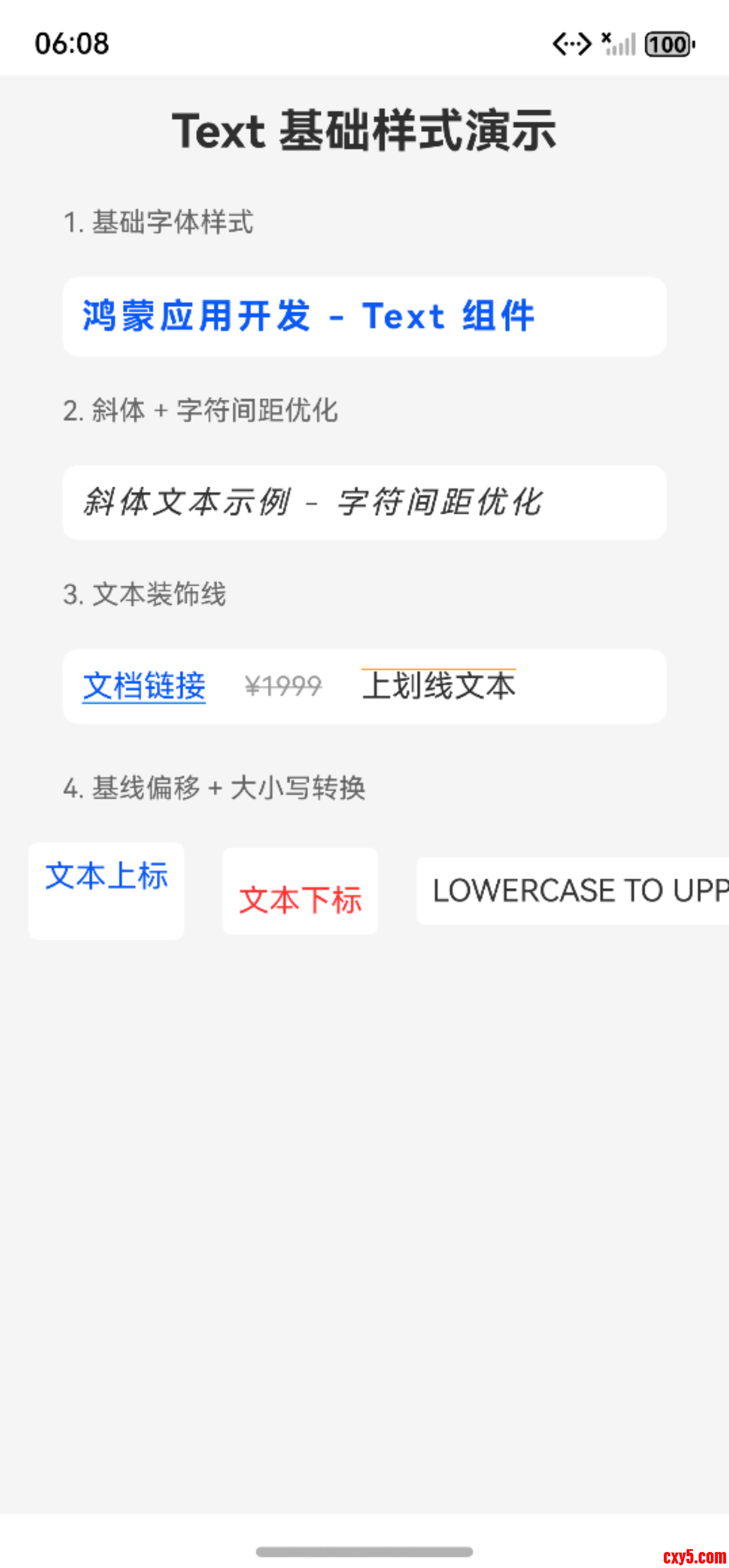
基础样式是文本视觉表现的核心,涵盖字体、间距、装饰线、基线偏移等维度。
3.1 核心样式属性解析
属性名功能说明取值规则与最佳实践fontSize设置字体大小12~24fp(24fp适配性差)fontWeight设置字体粗细支持100~900(百为单位),常用Normal(400)、Bold(700)fontColor设置字体颜色优先主题色/十六进制,保证对比度≥4.5:1fontStyle设置字体样式Normal(常规)/Italic(斜体)letterSpacing字符间距-2~4vp(负值重叠、0默认、正值扩大)decoration文本装饰线含type(Underline/LineThrough/Overline)和color子属性baselineOffset文本基线偏移-30~30vp(正值上移做上标,负值下移做下标)textCase大小写转换Normal/LowerCase(全小写)/UpperCase(全大写)3.2 基础样式示例(TextBasicPage.ets)
- @Entry
- @Component
- struct TextBasicPage {
- build() {
- Column({ space: 15}) {
- // 页面标题
- Text("Text 基础样式演示")
- .fontSize(24)
- .fontWeight(FontWeight.Bold)
- .width('100%')
- .textAlign(TextAlign.Center);
- // 1. 基础字体样式(加粗+品牌色+字符间距)
- Text("1. 基础字体样式")
- .fontSize(14)
- .fontColor('#666666')
- .width('90%')
- .margin({ top: 10, bottom: 5 });
- Text("鸿蒙应用开发 - Text 组件")
- .fontSize(18)
- .fontWeight(FontWeight.Bold)
- .fontColor($r('sys.color.brand'))
- .letterSpacing(2)
- .width('90%')
- .padding(10)
- .backgroundColor(Color.White)
- .borderRadius(8);
- // 2. 斜体样式
- Text("2. 斜体 + 字符间距优化")
- .fontSize(14)
- .fontColor('#666666')
- .width('90%')
- .margin({ top: 5, bottom: 5 });
- Text("斜体文本示例 - 字符间距优化")
- .fontStyle(FontStyle.Italic)
- .letterSpacing(2)
- .width('90%')
- .padding(10)
- .backgroundColor(Color.White)
- .borderRadius(8);
- // 3. 文本装饰线(下划线/删除线/上划线)
- Text("3. 文本装饰线")
- .fontSize(14)
- .fontColor('#666666')
- .width('90%')
- .margin({ top: 5, bottom: 5 });
- Row({ space: 20}) {
- // 下划线(链接标识)
- Text("文档链接")
- .fontSize(16)
- .fontColor($r('sys.color.brand'))
- .decoration({ type: TextDecorationType.Underline, color: '#007DFF' });
- // 删除线(原价/失效内容)
- Text("¥1999")
- .fontSize(14)
- .fontColor('#999999')
- .decoration({ type: TextDecorationType.LineThrough, color: '#999999' });
- // 上划线(特殊标记)
- Text("上划线文本")
- .fontSize(16)
- .decoration({ type: TextDecorationType.Overline, color: '#FF9900' });
- }.width('90%')
- .padding(10)
- .backgroundColor(Color.White)
- .borderRadius(8);
- // 4. 基线偏移 + 大小写转换
- Text("4. 基线偏移 + 大小写转换")
- .fontSize(14)
- .fontColor('#666666')
- .width('90%')
- .margin({ top: 10, bottom: 5 });
- Row({ space: 20 }) {
- Text("文本上标").fontSize(16).baselineOffset(15).fontColor($r('sys.color.brand')).backgroundColor(Color.White).padding(8).borderRadius(4);
- Text("文本下标").fontSize(16).baselineOffset(-10).fontColor('#FF3333').backgroundColor(Color.White).padding(8).borderRadius(4);
- Text("lowercase to uppercase").fontSize(16).textCase(TextCase.UpperCase).fontColor('#333333').backgroundColor(Color.White).padding(8).borderRadius(4);
- }
- }
- .backgroundColor('#F5F5F5')
- .width('100%')
- .height('100%')
- }
- }
四、图文混排
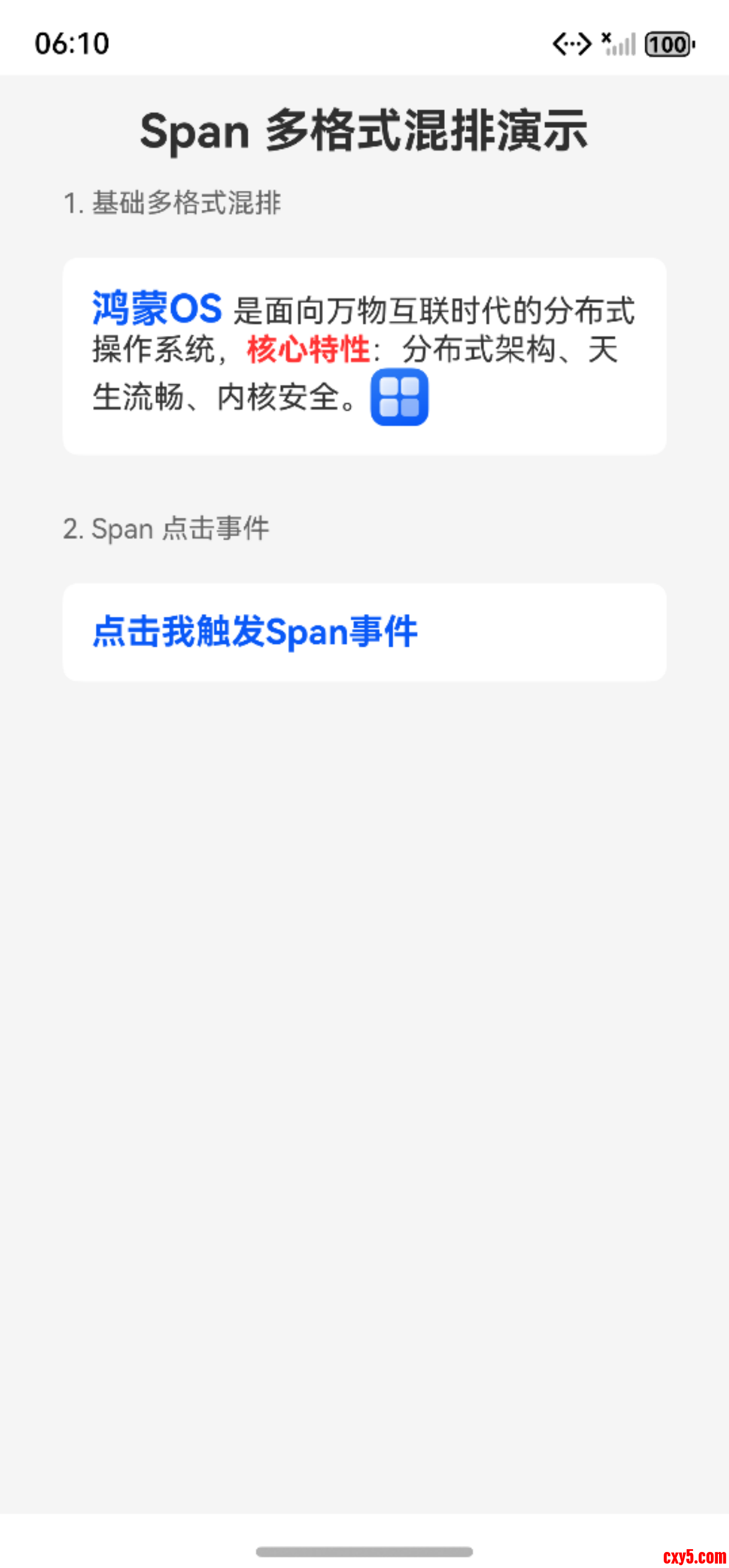
- Span是Text组件的专属子组件,无独立生命周期,仅能嵌套在Text内使用,核心用于实现单段文本内的多格式混排,是精细化控制文本样式的关键能力。
- ImageSpan子组件,可实现文本与图片的同行混排,ImageSpan仅支持width、height、verticalAlign三个属性。
4.1 核心规则
- 继承性:Span默认继承外层Text的所有样式(fontSize、fontColor等);
- 覆盖性:Span单独设置的样式,会优先覆盖继承的外层Text样式,实现局部定制;
- 唯一性:仅能嵌套在Text内,无法独立渲染;
- 交互性:支持onClick事件,文本选择能力继承外层Text的copyOption配置。
4.2 混排与交互示例(TextSpanPage.ets)
- import { promptAction } from '@kit.ArkUI';
- @Entry
- @Component
- struct TextSpanPage {
- build() {
- Column({ space: 15}) {
- // 页面标题
- Text("Span 多格式混排演示")
- .fontSize(24)
- .fontWeight(FontWeight.Bold)
- .width('100%')
- .textAlign(TextAlign.Center);
- // 1. 基础多格式混排(继承+覆盖,含ImageSpan)
- Text("1. 基础多格式混排")
- .fontSize(14)
- .fontColor('#666666')
- .width('90%')
- .margin({ bottom: 5 });
- Text() {
- Span("鸿蒙OS ").fontSize(20).fontWeight(FontWeight.Bold).fontColor($r('sys.color.brand')); // 覆盖样式
- Span("是面向万物互联时代的分布式操作系统,").fontSize(16).fontColor('#333333'); // 继承基础样式
- Span("核心特性").fontSize(16).fontWeight(FontWeight.Bold).fontColor('#FF3333'); // 覆盖样式
- Span(":分布式架构、天生流畅、内核安全。").fontSize(16).fontColor('#333333'); // 继承基础样式
- // ImageSpan:文本内图片混排,居中对齐
- ImageSpan($r('app.media.startIcon'))
- .width(30).height(30)
- .verticalAlign(ImageSpanAlignment.CENTER)
- }
- .width('90%')
- .padding(15)
- .backgroundColor(Color.White)
- .borderRadius(8);
- // 2. Span点击事件
- Text("2. Span 点击事件")
- .fontSize(14)
- .fontColor('#666666')
- .width('90%')
- .margin({ top: 15, bottom: 5 });
- Text() {
- Span("点击我触发Span事件")
- .fontSize(18)
- .fontColor($r('sys.color.brand'))
- .fontWeight(FontWeight.Bold)
- .onClick(() => {
- promptAction.showToast({ message: "Span组件被点击!" });
- });
- }
- .width('90%')
- .padding(15)
- .backgroundColor(Color.White)
- .borderRadius(8);
- }
- .padding(15)
- .backgroundColor('#F5F5F5')
- .width('100%')
- .height('100%');
- }
- }
五、文本排版与溢出处理
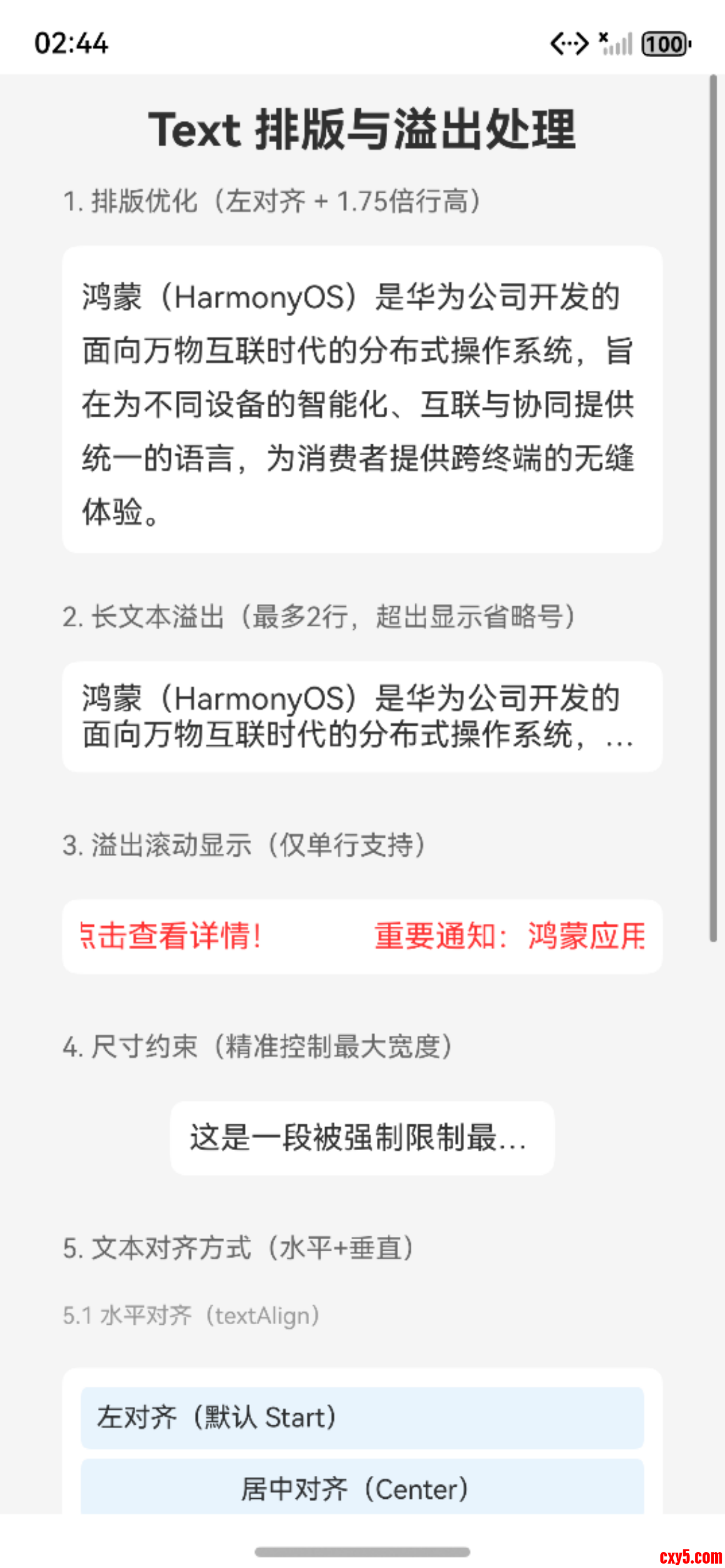
文本排版决定了文本在容器内的展示效果,溢出处理则解决了文本超出容器时的展示问题,是长文本展示的核心能力。
5.1 文本排版核心属性
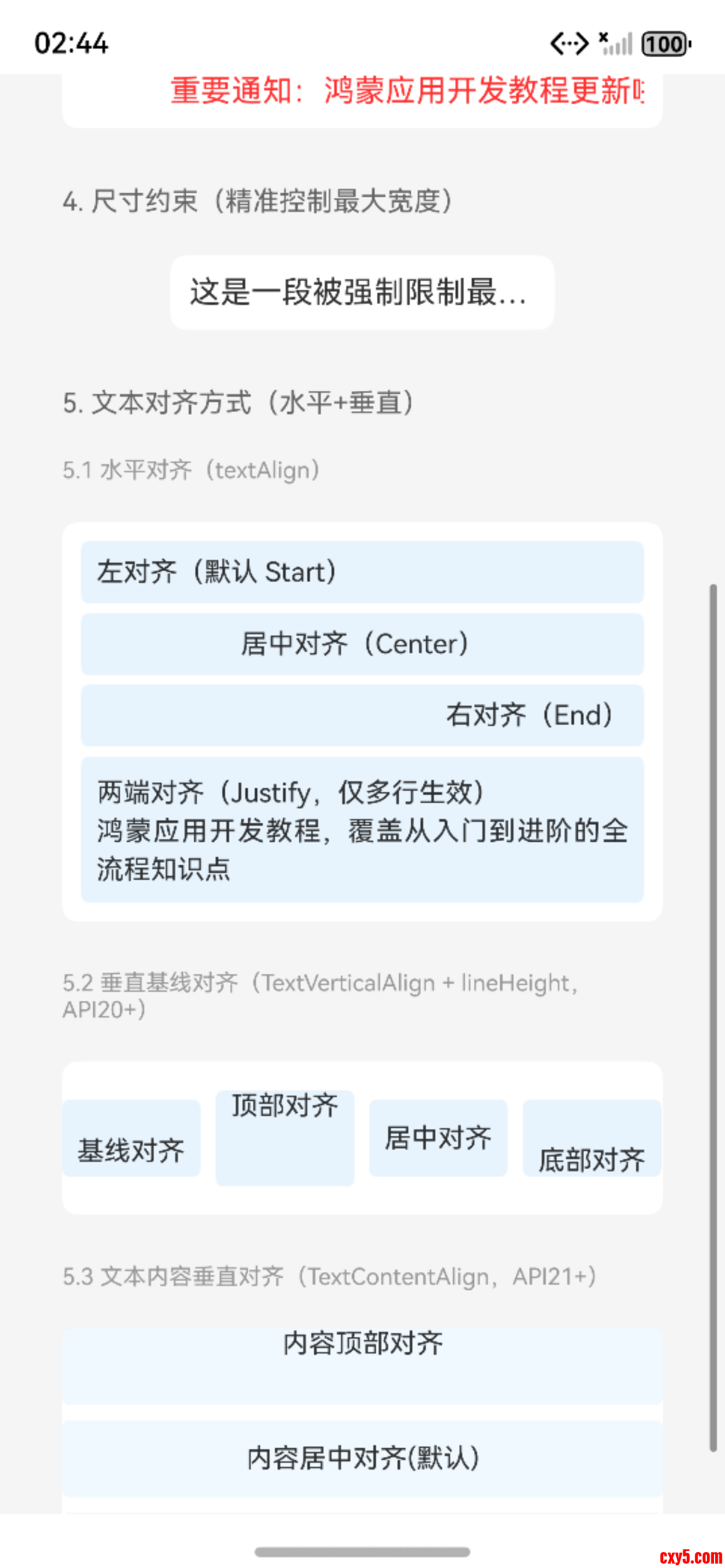
- textAlign:文本水平对齐方式,支持Start(左对齐,默认)、Center(居中)、End(右对齐)、Justify(两端对齐,仅多行生效);
- lineHeight:行高(两行文本基线间距),建议为字号的1.5~2倍,提升长文本可读性;
- TextVerticalAlign(API 20+):文本基线垂直对齐方式,支持BASELINE(基线对齐,默认)、TOP(顶部)、CENTER(居中)、BOTTOM(底部),控制文本自身基线的对齐规则;
- TextContentAlign(API 21+):文本内容垂直对齐方式,支持TOP(顶部)、CENTER(居中,默认)、BOTTOM(底部),控制文本内容在容器内的垂直对齐规则。
5.2 溢出处理核心属性
属性名功能说明适用场景生效前提maxLines限制文本最大显示行数所有长文本场景(必设)单独配置即可生效textOverflow溢出部分处理方式文本超出容器时的展示控制必须配合maxLines配置constraintSize强制限制文本的最小/最大宽高精准控制文本尺寸(如热搜、标签)单独配置即可生效textOverflow 有四种核心取值,分别适配不同场景:
- None:无特殊处理(同Clip)
- Ellipsis:溢出部分显示省略号,内容预览;
- Marquee:溢出部分滚动显示,该取值仅在maxLines=1时生效,适用于单行重要文本提醒;
- Clip:溢出部分直接裁剪,无任何标识,简洁展示。
5.3 示例代码(TextLayoutPage.ets)
运行效果
Text排版与溢出处理Text排版与溢出处理1六、文本交互事件
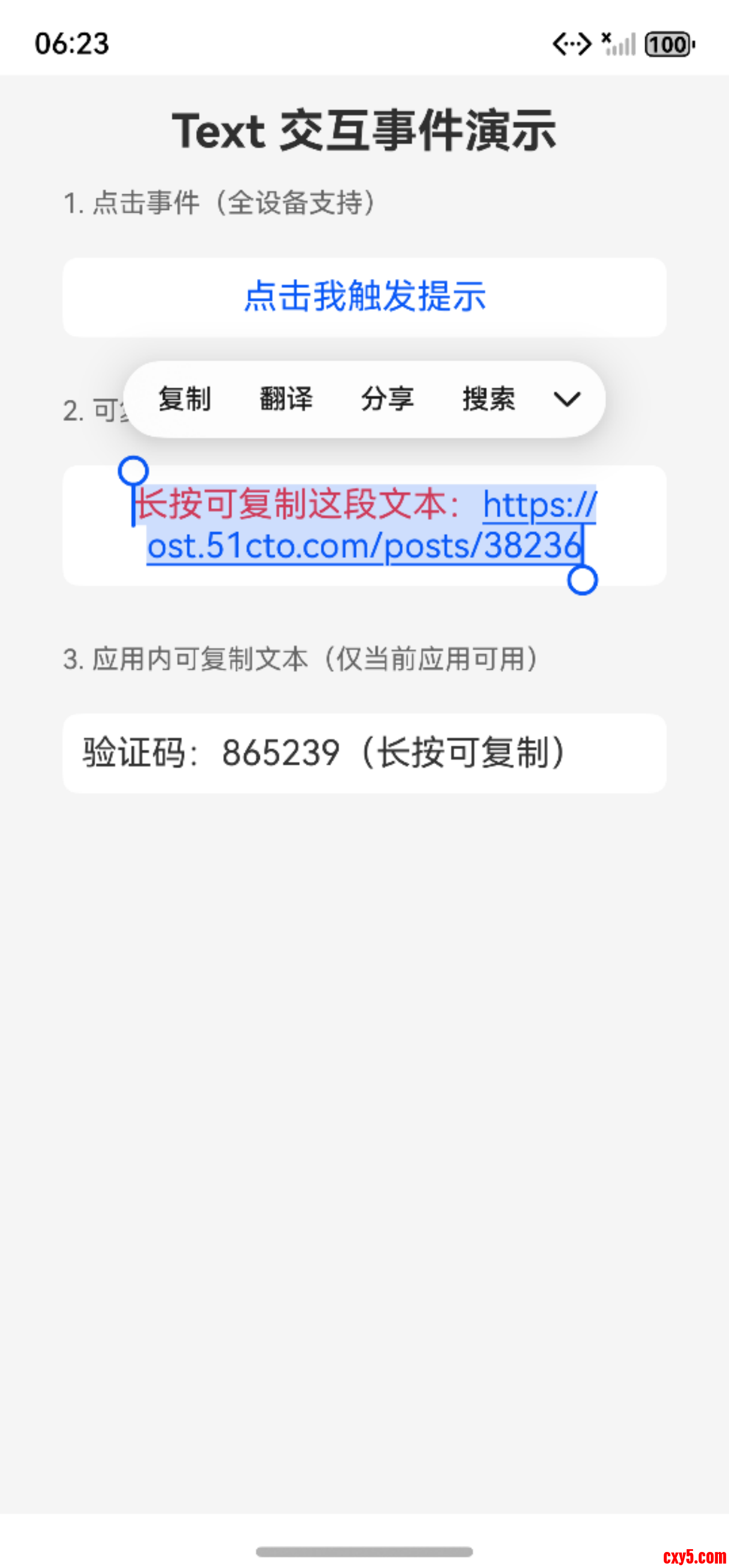
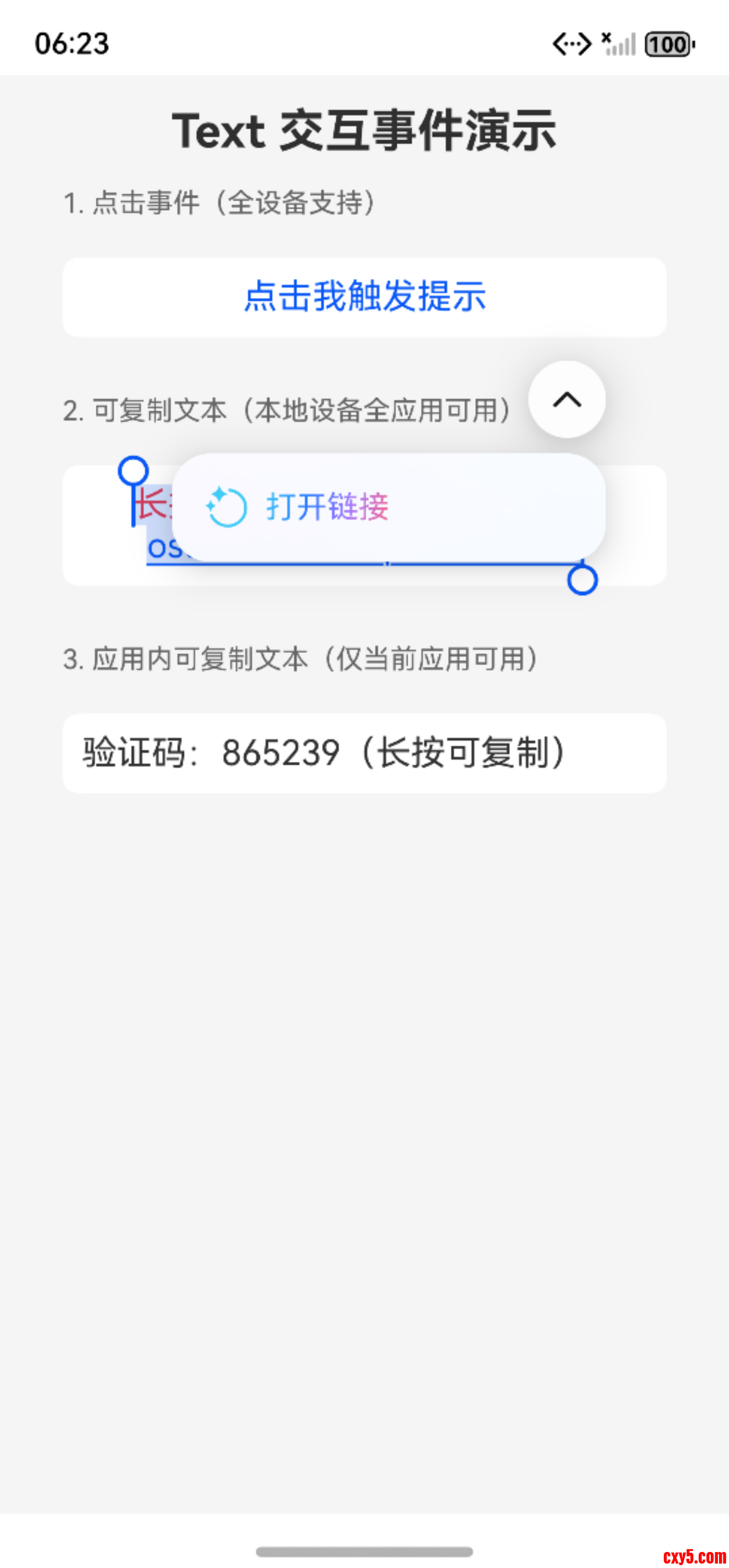
Text组件支持基础交互事件,结合copyOption可配置系统原生文本选择/复制能力,满足轻交互与文本复用需求。同时,Text组件还支持实体识别功能,通过enableDataDetector属性(总开关)控制,设为true即可开启系统原生识别能力,可识别电话、链接、邮箱等实体,配合dataDetectorConfig属性可指定识别类型、接收识别结果,点击识别结果会触发系统默认行为(如点击链接跳转、点击电话拨号)。
6.1 核心概念解析
事件/属性名功能说明支持组件适用场景设备支持onClick点击事件,点击时触发Text/Span轻交互(提示、简单跳转)全设备onHover悬浮事件,鼠标/触控笔悬浮时触发Text/Span鼠标/触控笔设备交互增强仅鼠标/触控笔设备onTouch触摸事件,按下/移动/抬起时触发Text复杂触摸交互全设备copyOption文本选择/复制控制开关Text(Span继承)启用系统原生长按选择/复制能力全设备copyOption 有三个核心枚举值,用于控制文本选择/复制的范围:
- None:不可选择复制,是默认取值;
- InApp:仅当前应用内可选择复制;
- LocalDevice:本地设备所有应用可选择复制。
系统原生选择能力有明确的使用规则:
- 启用前提:必须配置copyOption属性且取值非None;
- 触发方式:用户长按压文本,系统会自动弹出选择菜单,包含复制、粘贴、全选等功能;
- 继承规则:Span组件无独立的copyOption属性,其文本选择能力完全继承外层Text组件的配置。
6.2 示例代码(TextEventPage.ets)
- import { promptAction } from '@kit.ArkUI';
- @Entry
- @Component
- struct TextEventPage {
- @State textContent: string = "长按可复制这段文本:https://ost.51cto.com/posts/38236";
- build() {
- Column({ space: 15}) {
- // 页面标题
- Text("Text 交互事件演示")
- .fontSize(24)
- .fontWeight(FontWeight.Bold)
- .width('100%')
- .textAlign(TextAlign.Center);
- // 1. 点击事件
- Text("1. 点击事件(全设备支持)")
- .fontSize(14)
- .fontColor('#666666')
- .width('90%')
- .margin({ bottom: 5 });
- Text("点击我触发提示")
- .fontSize(18)
- .fontColor($r('sys.color.brand'))
- .width('90%')
- .textAlign(TextAlign.Center)
- .padding(10)
- .backgroundColor(Color.White)
- .borderRadius(8)
- .onHover((isHover: boolean) => {
- console.log(`鼠标悬浮状态:${isHover}`);
- })
- .onClick(() => {
- promptAction.showToast({ message: "文本被点击啦!" });
- })
- .onTouch((event) => {
- console.log(`触摸事件类型:${event.type}`);
- return true;
- });
- // 2. 可复制文本(系统原生能力,含实体识别)
- Text("2. 可复制文本(本地设备全应用可用)")
- .fontSize(14)
- .fontColor('#666666')
- .width('90%')
- .margin({ top: 15, bottom: 5 });
- Text(this.textContent)
- .fontSize(18)
- .fontColor('#FF3333')
- .width('90%')
- .textAlign(TextAlign.Center)
- .padding(10)
- .backgroundColor(Color.White)
- .borderRadius(8)
- .copyOption(CopyOptions.LocalDevice)
- .enableDataDetector(true)// 开启实体识别(总开关)
- .dataDetectorConfig({
- // types设为[]识别所有实体,可指定具体类型(如URL、电话号码)
- types: [],
- onDetectResultUpdate: (result: string) => {} // 识别结果回调
- })
- // 3. 应用内可复制文本(验证码场景)
- Text("3. 应用内可复制文本(仅当前应用可用)")
- .fontSize(14)
- .fontColor('#666666')
- .width('90%')
- .margin({ top: 15, bottom: 5 });
- Text("验证码:865239(长按可复制)")
- .fontSize(18)
- .fontColor('#333333')
- .backgroundColor(Color.White)
- .padding(10)
- .borderRadius(8)
- .width('90%')
- .copyOption(CopyOptions.InApp);
- }
- .padding(15)
- .backgroundColor('#F5F5F5')
- .width('100%')
- .height('100%');
- }
- }
Text选中交互事件开启实体识别七、Text 进阶能力
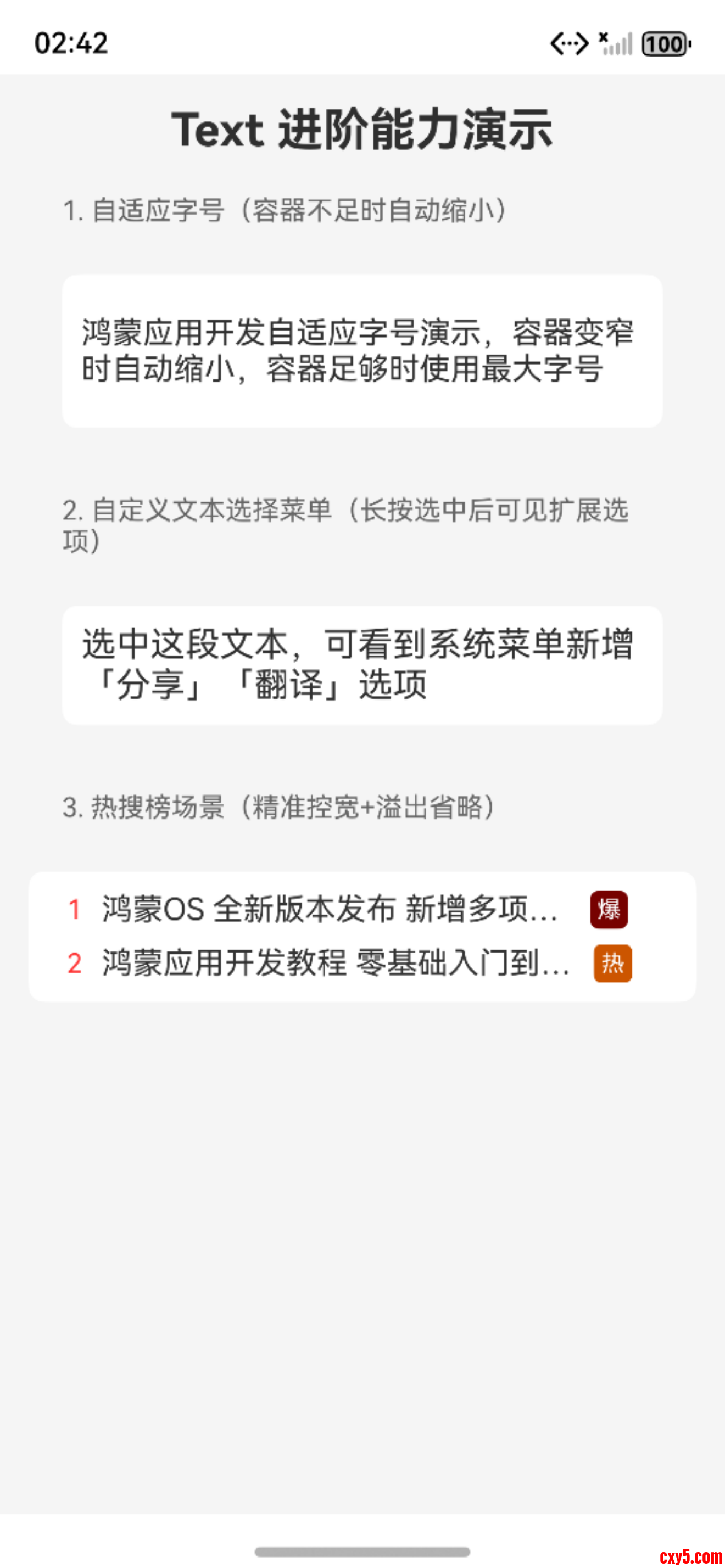
进阶能力涵盖自适应字号、自定义文本选择菜单、热搜榜实战场景,是满足复杂业务需求的核心能力,基于Text组件原生属性实现,无需额外依赖。
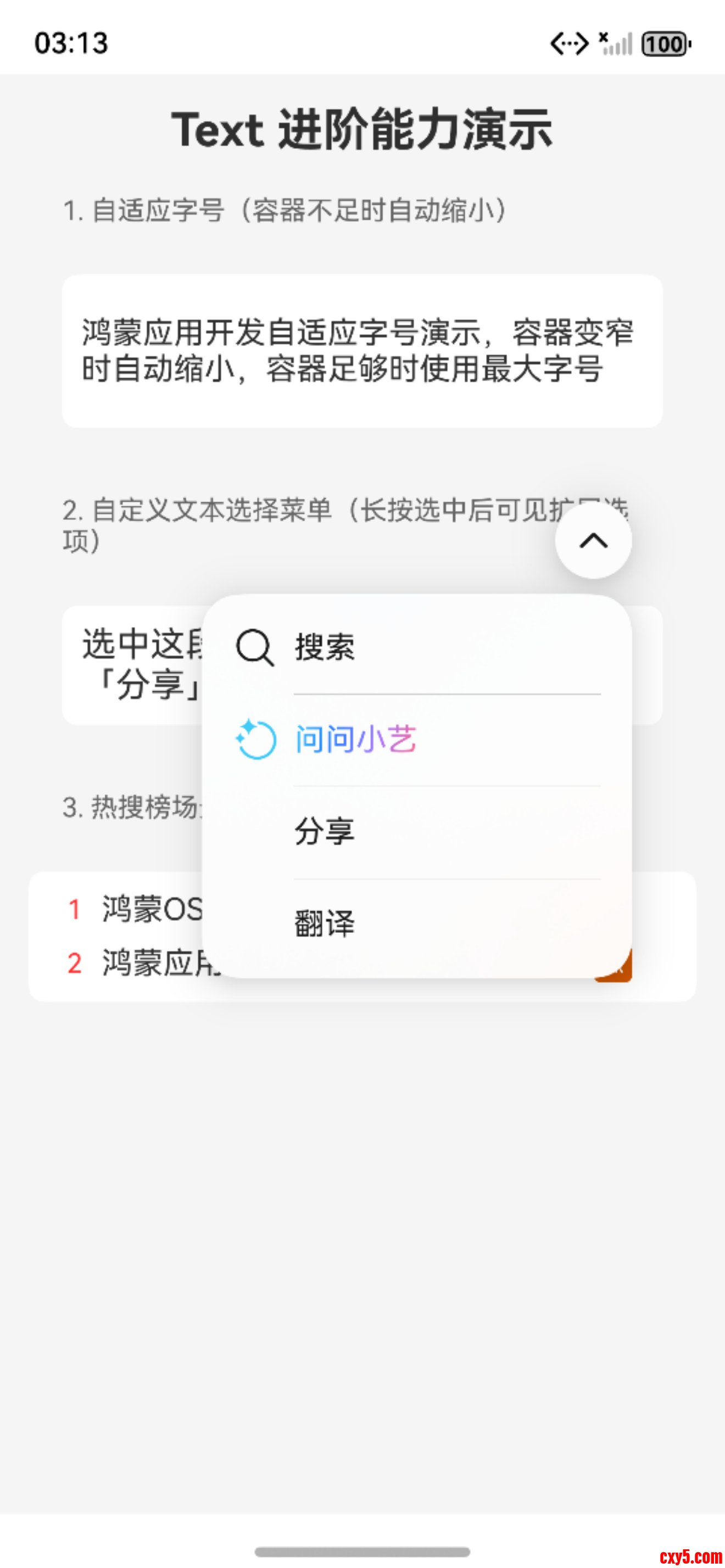
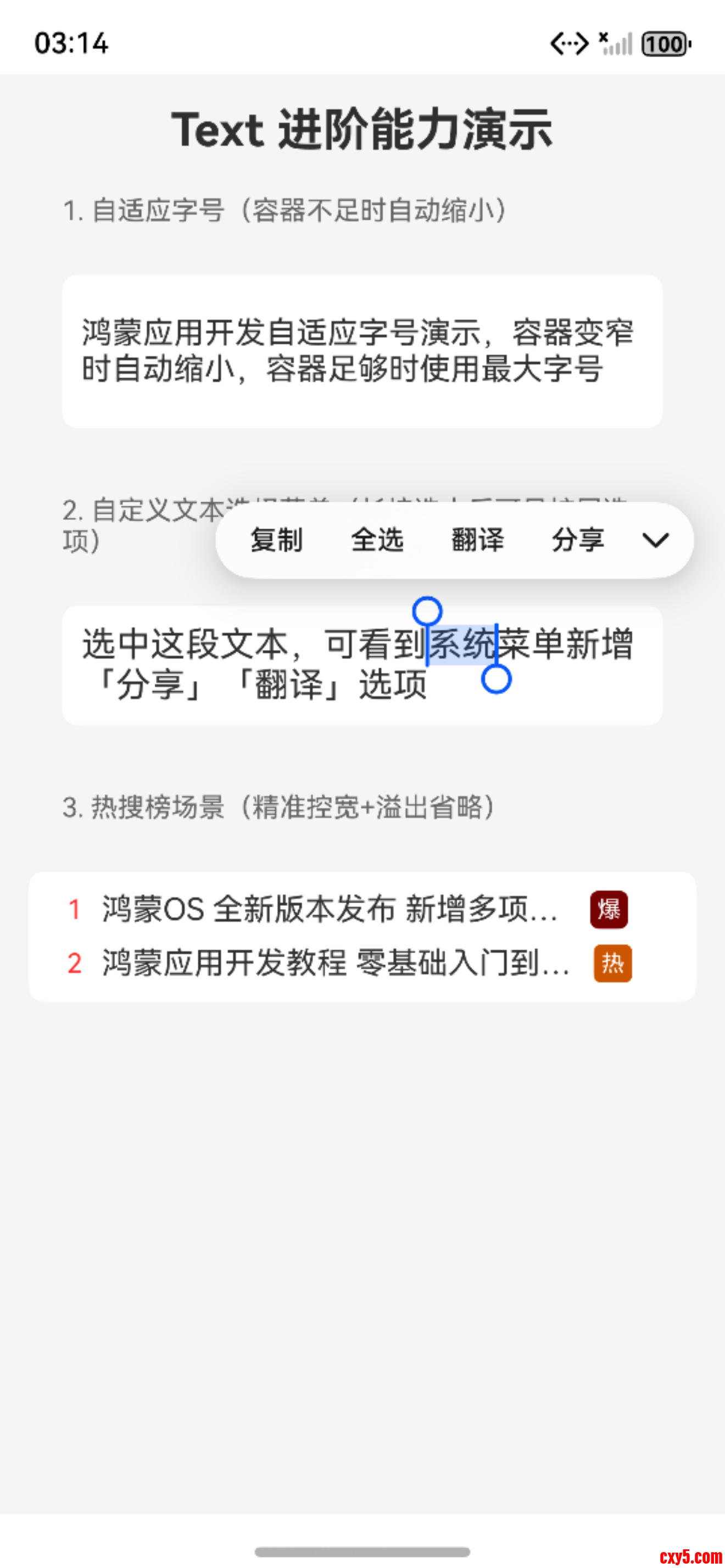
其中自定义文本选择菜单功能,通过editMenuOptions属性配置菜单构建函数和点击回调,且该功能依赖copyOption属性启用文本选择能力,可实现扩展系统菜单(如添加分享、翻译等自定义功能)。
7.1 核心概念解析
能力类型核心属性实现逻辑生效前提自适应字号minFontSize + maxFontSize文本在指定字号范围内自动缩放,容器空间不足时缩小① 同时设置min/maxFontSize;② 设置maxLines;③ 有宽/高约束自定义选择菜单editMenuOptions扩展系统原生文本选择菜单,添加自定义功能① 配置copyOption启用文本选择;热搜榜场景constraintSize + maxLines + textOverflow精准控制词条宽度,溢出显示省略号① constraintSize设置最大宽度;② maxLines=1+Ellipsis7.2 示例代码(TextAdvancedPage.ets)
- import { promptAction } from '@kit.ArkUI';
- @Entry
- @Component
- struct TextAdvancedPage {
- // 自定义选择菜单:扩展系统菜单,添加「分享」「翻译」选项
- private onCreateMenu = (menuItems: Array<TextMenuItem>): Array<TextMenuItem> => {
- const shareItem: TextMenuItem = {
- content: '分享',
- id: TextMenuItemId.of('share'),
- };
- const translateItem: TextMenuItem = {
- content: '翻译',
- id: TextMenuItemId.of('translate'),
- };
- menuItems.push(shareItem, translateItem);
- return menuItems;
- };
- // 自定义菜单点击事件回调
- private onMenuItemClick = (menuItem: TextMenuItem, textRange: TextRange): boolean => {
- if (menuItem.id.equals(TextMenuItemId.of('share'))) {
- promptAction.showToast({ message: "文本分享成功!" });
- return true;
- }
- if (menuItem.id.equals(TextMenuItemId.of('translate'))) {
- promptAction.showToast({ message: "文本翻译成功!" });
- return true;
- }
- return false;
- };
- build() {
- Column({ space: 20}) {
- Text("Text 进阶能力演示")
- .fontSize(24)
- .fontWeight(FontWeight.Bold)
- .width('100%')
- .textAlign(TextAlign.Center);
- // 1. 自适应字号(12~30fp)
- Text("1. 自适应字号(容器不足时自动缩小)")
- .fontSize(14)
- .fontColor('#666666')
- .width('90%')
- .margin({ bottom: 5 });
- Text("鸿蒙应用开发自适应字号演示,容器变窄时自动缩小,容器足够时使用最大字号")
- .width('90%')
- .height(80)
- .maxFontSize(30)
- .minFontSize(12)
- .maxLines(2)
- .padding(10)
- .backgroundColor(Color.White)
- .borderRadius(8);
- // 2. 自定义文本选择菜单
- Text("2. 自定义文本选择菜单(长按选中后可见扩展选项)")
- .fontSize(14)
- .fontColor('#666666')
- .width('90%')
- .margin({ top: 15, bottom: 5 });
- Text("选中这段文本,可看到系统菜单新增「分享」「翻译」选项")
- .fontSize(18)
- .width('90%')
- .padding(10)
- .backgroundColor(Color.White)
- .borderRadius(8)
- .copyOption(CopyOptions.LocalDevice) // 启用文本选择,菜单生效前提
- .editMenuOptions({
- onCreateMenu: this.onCreateMenu,
- onMenuItemClick: this.onMenuItemClick
- });
- // 3. 热搜榜场景演示
- Text("3. 热搜榜场景(精准控宽+溢出省略)")
- .fontSize(14)
- .fontColor('#666666')
- .width('90%')
- .margin({ top: 15, bottom: 5 });
- Column() {
- // 热搜1(爆)
- Row() {
- Text("1")
- .fontSize(14)
- .fontColor('#FF3333')
- .margin({ left: 10, right: 10 });
- Text("鸿蒙OS 全新版本发布 新增多项核心功能")
- .fontSize(16)
- .fontColor('#333333')
- .maxLines(1)
- .textOverflow({ overflow: TextOverflow.Ellipsis })
- .constraintSize({ maxWidth: 250 });
- Text("爆")
- .margin({ left: 4 })
- .fontSize(12)
- .textAlign(TextAlign.Center)
- .fontColor(Color.White)
- .backgroundColor(0x770100)
- .borderRadius(5)
- .width(20)
- .height(20);
- }
- .width('100%')
- .margin({bottom:8})
- // 热搜2(热)
- Row() {
- Text("2")
- .fontSize(14)
- .fontColor('#FF3333')
- .margin({ left: 10, right: 10 });
- Text("鸿蒙应用开发教程 零基础入门到精通 最新版")
- .fontSize(16)
- .textOverflow({ overflow: TextOverflow.Ellipsis })
- .fontColor('#333333')
- .maxLines(1)
- .constraintSize({ maxWidth: 250 });
- Text("热")
- .margin({ left: 6 })
- .fontSize(12)
- .textAlign(TextAlign.Center)
- .fontColor(Color.White)
- .backgroundColor(0xCC5500)
- .borderRadius(4)
- .width(20)
- .height(20);
- }
- .width('100%')
- }
- .width('100%')
- .padding(10)
- .backgroundColor(Color.White)
- .borderRadius(8)
- }.padding(15)
- .backgroundColor('#F5F5F5')
- .width('100%')
- .height('100%');
- }
- }
Text进阶能力演示添加自定义菜单选中文本默认菜单八、核心知识点总结
- 组件定位:Text是只读文本展示组件,无编辑能力,与TextInput/TextArea边界清晰;
- 事件规则:支持onClick(全设备)、onHover(仅鼠标/触控笔)、onTouch(全设备);文本选择是系统原生能力,由copyOption配置;
- 样式属性:fontSize默认fp单位,fontWeight支持100~900取值,textAlign的Justify仅对多行生效;TextVerticalAlign(API20+)默认BASELINE,TextContentAlign(API21+)默认CENTER;
- 溢出处理:长文本必配maxLines+Ellipsis;Marquee仅单行生效;constraintSize优先级高于父容器;
- Span规则:仅嵌套在Text内,样式继承+覆盖,仅支持onClick,选择能力继承外层;
- ImageSpan:Text专属子组件,实现文本图片混排,仅3个核心属性,图片需放入media目录;
- 实体识别:enableDataDetector开启识别,dataDetectorConfig配置细节,支持5种原生实体类型;
- 自适应字号:需同时满足min/maxFontSize、maxLines、宽高约束三个条件才生效;
- 自定义选择菜单:依赖copyOption生效,可扩展系统菜单功能;
- copyOption:枚举值(None/InApp/LocalDevice),控制文本选择/复制范围。
九、配套代码
- 工程名称:TextApplication
- 仓库地址:https://gitee.com/HarmonyOS-UI-Basics/harmony-os-ui-basics.git
十、下节预告
下一节我们将学习核心基础组件(三)—— 文本输入组件 TextInput / TextArea / Search,从三大核心维度系统掌握文本输入全场景开发能力:
- 基础用法:明确 TextInput(单行)、TextArea(多行)、Search(搜索专属)三大组件差异,掌握 Normal / Password / Email 等输入类型配置,适配登录、表单、评论、搜索等场景;
- 样式与事件:自定义提示文本、背景、边框与密码显隐样式,绑定 onChange、onSubmit、onSecurityStateChange、onPaste 等核心事件,实现输入数据实时同步与交互控制;
- 进阶实战:掌握 inputFilter 字符过滤、onWillChange 内容拦截、全局焦点控制、键盘避让、光标定位等能力,解决输入校验、格式限制、软键盘遮挡等高频开发问题,独立完成登录注册、搜索联想、评论编辑等实战页面开发。
来源:程序园用户自行投稿发布,如果侵权,请联系站长删除
免责声明:如果侵犯了您的权益,请联系站长,我们会及时删除侵权内容,谢谢合作! |


 提升卡
提升卡 置顶卡
置顶卡 沉默卡
沉默卡 喧嚣卡
喧嚣卡 变色卡
变色卡 千斤顶
千斤顶 照妖镜
照妖镜