Flutter中使用主题,基本都是通过ThemeData来进行的(不会有人用CupertinoThemeData吧,如果有,我敬你是个汉子)。而ThemeData的编写和定义,都牢牢的和Material Design风格绑定在了一起。
那么,问题来了,我们在开发过程中,设计师给出的设计稿,通常带有设计师自己的一套风格主题。
这些风格主题和被强绑定的Material Design风格,基本都是天差地别,没有一丝丝的相似。
这就出现了一些解决方案,不过基本都是自定义一个AppColors之类的类,然后通过状态管理框架(例如:Getx、Bloc、Provider等等)进行全局刷新。
这里就出现了一些纠结的地方:
- Flutter中默认的Theme已经提供了切换的方法,无需再通过状态管理框架再写一次了,但是强制使用了Material Design风格,基本上和设计师给的冲突了。
- 通过状态管理框架自己实现一套颜色配置,完全抛弃Theme提供的所有帮助。
其实,我们可以通过ThemeExtension来进行扩展,把我们的theme进行扩展。
来,上教程!
1. 先来一个AppColors压压惊
当然,无论怎样,都需要定义我们的AppColors。在这里,用来存放所有的设计师给的规范颜色值。
例如:- import 'package:flutter/material.dart';
- /// app_colors.dart
- class AppLightColors {
- static const Color demo1 = Colors.red; // 红色的
- static const Color demo2 = Colors.green; // 绿色的
- // ... 这里接着写设计师提供的所有颜色值
- }
- class AppDarkColors {
- static const Color demo1 = Colors.black; // 黑色的
- static const Color demo2 = Colors.white; // 白色的
- // ... 这里接着写设计师提供的所有颜色值
- }
接着,我们就要创建我们自己的Theme了,通过ThemeExtension来实现,这里有几点需要注意:
- 如果颜色值很多(基本都会很多),尽量使用ai来帮你实现复制粘贴内容,这里的颜色值需要完完整整的都定义出来,跟着设计师给出的颜色表。
- lerp方法是一个渐变方法,切换主题后,所有颜色会有一个渐变效果,很好看。可以直接使用Color.lerp方法进行。
例如:
- import 'package:flutter/material.dart';
- /// app_colors_extension.dart
- class AppColorsExtension extends ThemeExtension {
- AppColorsExtension({
- required this.demo1,
- required this.demo2,
- // ... 这里需要定义所有的值,如果写的累就找AI吧
- });
- final Color demo1; // 演示值1
- final Color demo2; // 演示值2
- // ... 这里需要定义所有的值,如果写的累就找AI吧
- @override
- ThemeExtension copyWith({Color? demo1, Color? demo2}) {
- return AppColorsExtension(
- demo1: demo1 ?? this.demo1,
- demo2: demo2 ?? this.demo2,
- // ... 这里需要定义所有的值,如果写的累就找AI吧
- );
- }
- @override
- ThemeExtension lerp(
- ThemeExtension? other,
- double t,
- ) {
- // 这里排除了不是我们自定义的情况
- if (other is! AppColorsExtension) {
- return this;
- }
- return AppColorsExtension(
- demo1: Color.lerp(demo1, other.demo1, t)!,
- demo2: Color.lerp(demo2, other.demo2, t)!,
- // ... 这里需要定义所有的值,如果写的累就找AI吧
- );
- }
- }
前两步,我们定义好了ThemeExtension和Color,现在,通过自定义的theme,我们把ThemeExtension和Color绑定在一起。
例如:- import 'package:flutter/material.dart';
- import 'app_colors.dart';
- import 'app_colors_extension.dart';
- /// app_themes.dart
- // 我们自定义的亮色主题
- class LightTheme {
- static ThemeData theme = ThemeData.light().copyWith(
- extensions: [_lightAppColors],
- );
- static final _lightAppColors = AppColorsExtension(
- demo1: AppLightColors.demo1,
- demo2: AppLightColors.demo2,
- );
- }
- // 我们自定义的暗色主题
- class DarkTheme {
- static ThemeData theme = ThemeData.dark().copyWith(
- extensions: [_darkAppColors],
- );
- static final _darkAppColors = AppColorsExtension(
- demo1: AppDarkColors.demo1,
- demo2: AppDarkColors.demo2,
- );
- }
上一步中我们写好了亮色主题和暗色主题,那么我们把这个主题绑定到Flutter的项目中。
例如:- import 'package:flutter/material.dart';
- import 'home_page.dart';
- import 'app_themes.dart';
- /// main.dart
- void main() {
- runApp(const MyApp());
- }
- class MyApp extends StatefulWidget {
- const MyApp({super.key});
- @override
- State<MyApp> createState() => _MyAppState();
- }
- class _MyAppState extends State<MyApp> {
- ThemeMode _themeMode = ThemeMode.light; // 默认设置为light
- // 这里定义一个切换主题的方法,提供给HomePage使用,这里看大家的状态管理框架要怎么处理了
- void toggleTheme() {
- setState(() {
- _themeMode = _themeMode == ThemeMode.light
- ? ThemeMode.dark
- : ThemeMode.light;
- });
- }
- @override
- Widget build(BuildContext context) {
- return MaterialApp(
- title: 'Flutter Theme Demo',
- theme: AppLightTheme.theme, // 这里定义亮色主题
- darkTheme: AppDarkTheme.theme, // 这里定义暗色主题
- themeMode: _themeMode, // 设置主题模式,这里就要看大家的状态管理框架要怎么处理了
- home: HomePage(toggleTheme: toggleTheme),
- );
- }
- }
至此,我们所有的配置工作就全部做完了,现在,就开始用起来。
获取颜色的方法:Theme.of(context).extension()?.demo1
例如:- import 'package:flutter/material.dart';
- import 'app_colors_extension.dart';
- /// home_page.dart
- class HomePage extends StatelessWidget {
- const HomePage({super.key, required this.toggleTheme});
- final void Function() toggleTheme;
- @override
- Widget build(BuildContext context) {
- return Scaffold(
- appBar: AppBar(title: Text('Flutter Theme Demo')),
- body: Center(
- child: Column(
- mainAxisAlignment: .center,
- children: [
- Container(
- decoration: BoxDecoration(
- color: Theme.of(
- context,
- ).extension()!.demo1, // 这里就是使用我们自定义的颜色
- border: Border.all(width: 1, color: Colors.grey),
- ),
- height: 120,
- width: 120,
- ),
- Container(
- decoration: BoxDecoration(
- color: Theme.of(
- context,
- ).extension()?.demo2, // 这里就是使用我们自定义的颜色
- border: Border.all(width: 1, color: Colors.grey),
- ),
- height: 120,
- width: 120,
- ),
- ElevatedButton(
- onPressed: () {
- // 点击这里切换主题, 从light切换到dark, 从dark切换到light
- toggleTheme();
- },
- child: Text("切换主题"),
- ),
- ],
- ),
- ),
- );
- }
- }
6. 来看看效果
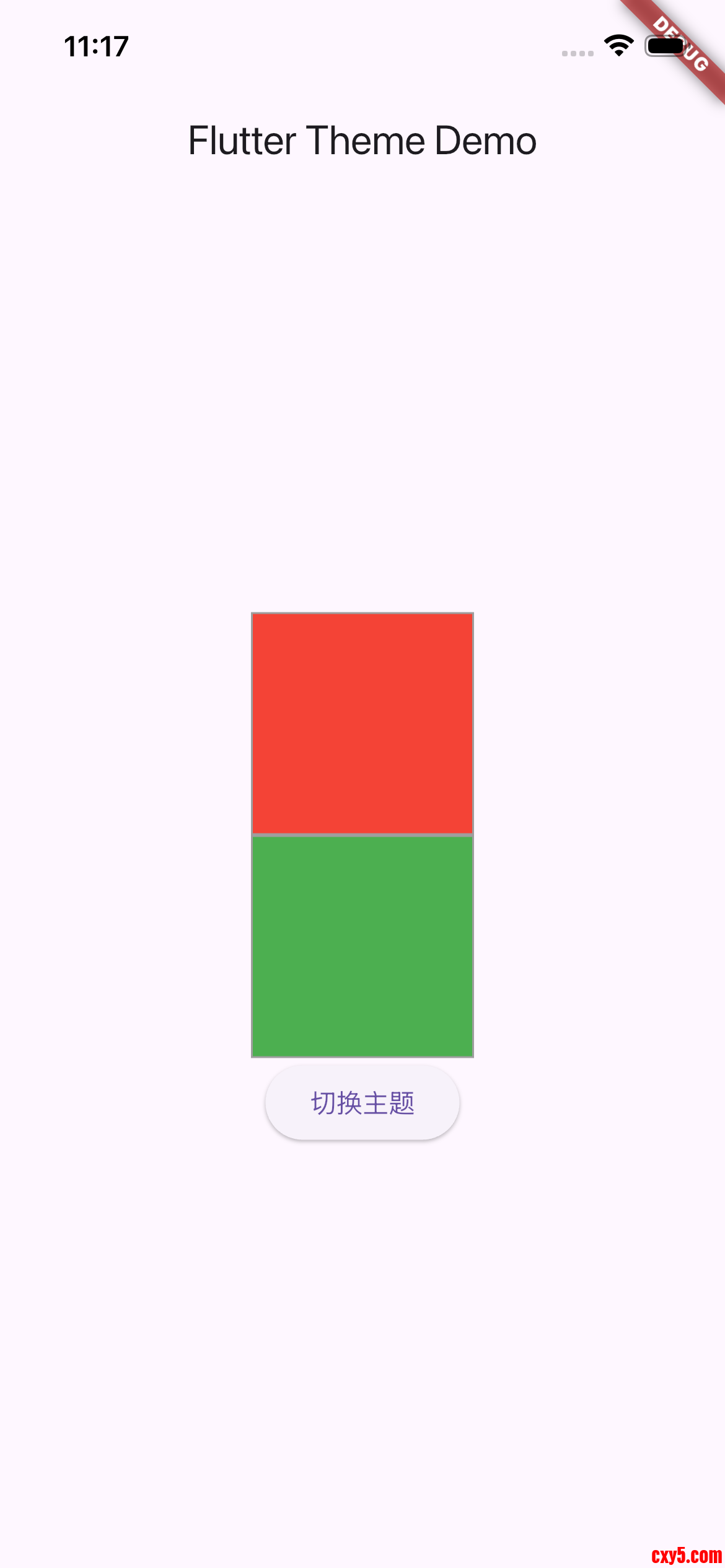
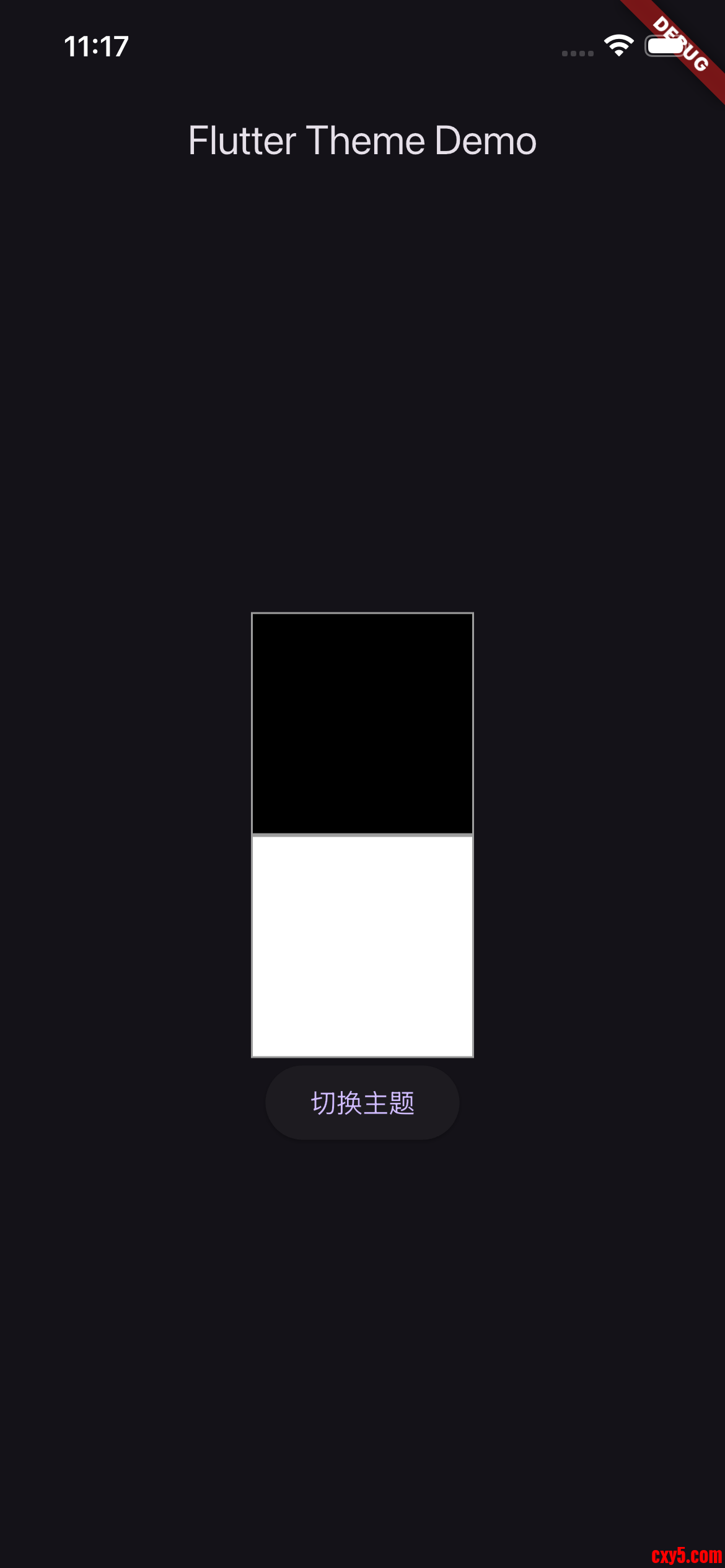
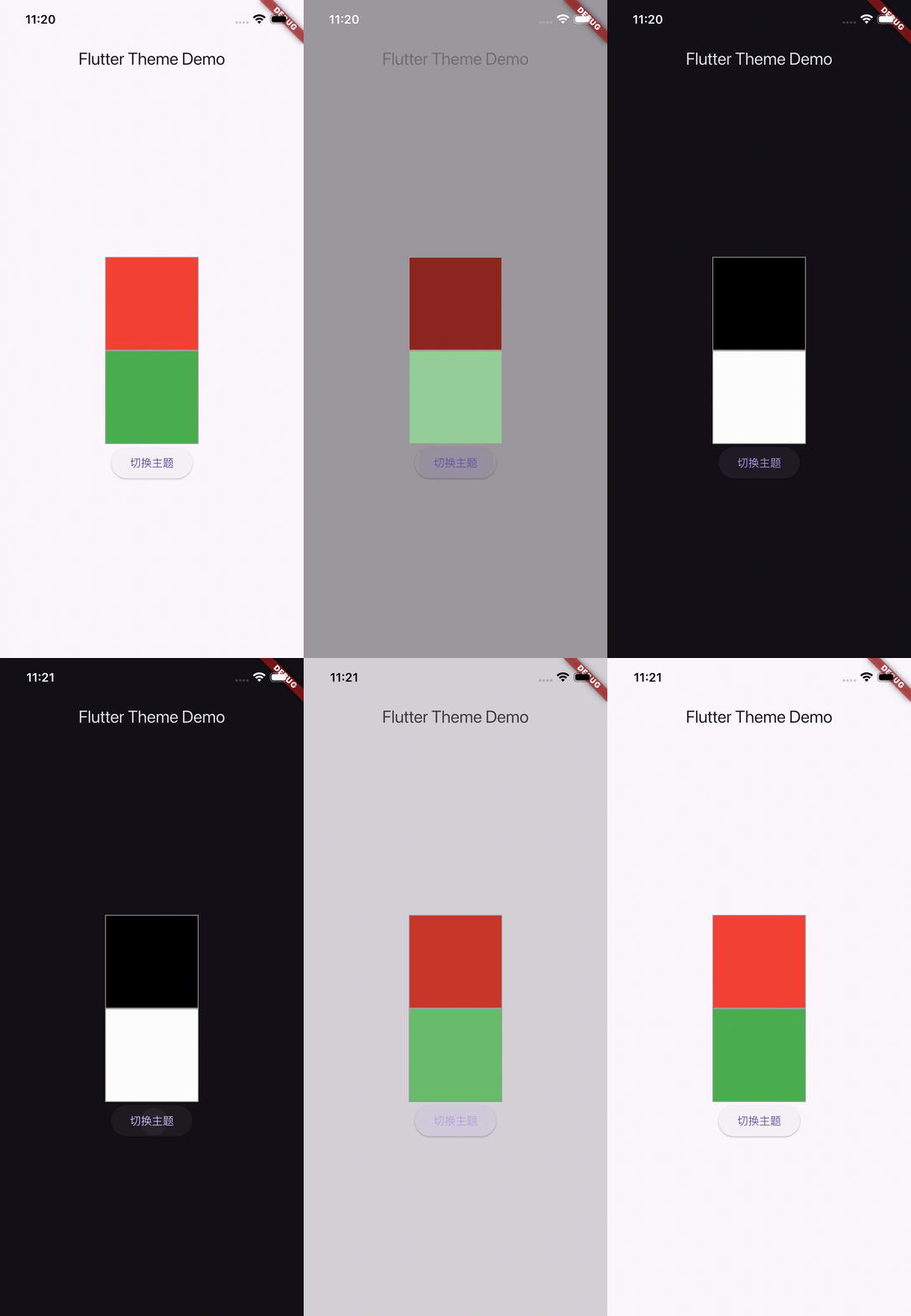
这就是效果咯,来看一下,感受一下
浅色深色动画效果7. 一点点简化的小方法
我们看到,第5步中,获取颜色的方法Theme.of(context).extension()?.demo1,写起来有点长,我们来化简一下:
例如:
首先,得修改一下app_themes.dart文件,来提供默认的颜色- // ......
- // 我们自定义的亮色主题
- class AppLightTheme {
- static ThemeData theme = ThemeData.light().copyWith(
- extensions: [lightAppColors], // <-- 改了这里,把下划线去掉,变为public字段
- );
- // 改了这里,把下划线去掉,变为public字段
- static final lightAppColors = AppColorsExtension(
- demo1: AppLightColors.demo1,
- demo2: AppLightColors.demo2,
- );
- }
- // ......
例如:
[code]import 'package:flutter/material.dart';import 'theme_extension.dart'; // 这里就需要引入这个类来使用我们的简化方法// import 'app_colors_extension.dart'; |


 提升卡
提升卡 置顶卡
置顶卡 沉默卡
沉默卡 喧嚣卡
喧嚣卡 变色卡
变色卡 千斤顶
千斤顶 照妖镜
照妖镜