第十六节:图片展示组件Image核心讲解与实战(基础篇)
【学习目标】
- 理解Image组件的核心定位,掌握png/jpg/svg/gif等主流格式的支持特性,明确各类格式的适配场景;
- 精通本地资源、网络图片、媒体库、Base64等基础数据源的加载方式与权限配置;
- 掌握objectFit、interpolation、renderMode等核心属性的用法,能根据业务需求自定义基础图片展示效果。
一、Image组件核心认知
1.1 组件定义与定位
Image是鸿蒙图片展示的核心基础组件,负责将不同来源、不同格式的图片资源渲染到界面上,是应用开发中高频使用的组件之一。它承接了从图片加载、解码到渲染展示的全流程能力,同时支持丰富的属性配置和进阶扩展,可满足日常静态展示、动态效果呈现、性能优化等多场景需求。
1.2 支持图片格式与适配说明
支持格式格式后缀适用场景特殊说明位图基础格式png、jpg、bmp、jpeg日常静态图片展示(图标、背景、内容图)png支持透明通道,适合图标/按钮;jpg压缩率高,适合大尺寸内容图矢量图格式svg自适应缩放场景(LOGO、简易图标、插画)无像素失真,支持动态修改颜色,无原始尺寸时需手动设置宽高动态图片格式gif、heif短动态效果展示(表情包、简易动画)支持多帧播放,ArkTS卡片中gif仅播放一次不支持格式apng、svga-如需实现复杂动态效果,可通过AnimatedDrawableDescriptor1.3 典型适用场景
场景类型具体示例核心实现要点基础静态展示页面图标、背景图、商品图片本地资源/Resource加载 + objectFit适配 + 基础样式配置网络图片展示新闻配图、头像、远程资源图网络路径加载 + INTERNET权限 + 缓存优化 + 加载/失败占位自适应矢量展示应用LOGO、功能图标、导航栏图标SVG格式 + fillColor动态改色 + 固定宽高配置动态效果展示表情包、操作反馈动画、轮播小动画GIF/HEIF格式 + AnimatedDrawableDescriptor + 循环/时长配置复杂定制展示圆形头像、带徽章图片、分层背景objectFit(Cover) + 裁剪 + LayeredDrawableDescriptor分层叠加性能优化场景长列表图片、大尺寸图片展示sourceSize解码降分辨率 + 异步加载 + 缓存策略二、工程结构与环境准备
2.1 工程基础配置
- 基础环境:鸿蒙API 12+、Stage模型
- 权限声明:网络图片需在module.json5中添加ohos.permission.INTERNET;媒体库访问需申请ohos.permission.READ_MEDIA_IMAGES权限(PhotoViewPicker安全控件方式无需声明)
2.2 工程目录结构
- ImageApplication/
- ├── AppScope/
- │ └── app.json5 // 应用全局配置
- ├── entry/
- │ ├── src/
- │ │ ├── main/
- │ │ │ ├── ets/
- │ │ │ │ ├── entryability/
- │ │ │ │ │ └── EntryAbility.ets // 应用入口
- │ │ │ │ ├── pages/ // 功能演示页面
- │ │ │ │ │ ├── Index.ets // 导航主页面
- │ │ │ │ │ ├── ImageBasicPage.ets // 基础用法&核心属性
- │ │ │ │ │ ├── ImageSourcePage.ets // 多数据源加载
- │ │ │ │ │ ├── Base64ImagePage.ets // Base64图片加载
- │ │ │ │ │ ├── ImageMediaLibrary.ets // 媒体库加载
- │ │ │ ├── resources/
- │ │ │ │ ├── media/ // $r引用资源
- │ │ │ │ └── rawfile/ // $rawfile引用原生资源
- │ │ │ └── module.json5 // 权限声明
- import { router } from '@kit.ArkUI';
- interface RouterButton {
- title: string;
- url: string;
- }
- @Entry
- @Component
- struct Index {
- private buttonList: RouterButton[] = [
- { title: "Image基础用法&核心属性", url: 'pages/ImageBasicPage' },
- { title: "Image多数据源加载", url: 'pages/ImageSourcePage' },
- { title: "Base64图片加载", url: 'pages/Base64ImagePage' },
- { title: "MediaLibrary图片加载", url: 'pages/ImageMediaLibrary' },
- ];
- build() {
- Column({ space: 15 }) {
- Text("Image组件实战教程")
- .fontSize(30)
- .fontWeight(FontWeight.Bold)
- .margin({ bottom: 40 })
- .textAlign(TextAlign.Center);
- ForEach(
- this.buttonList,
- (item: RouterButton) => {
- Button(item.title)
- .width('80%')
- .height(45)
- .backgroundColor($r('sys.color.brand'))
- .fontColor(Color.White)
- .fontSize(16)
- .borderRadius(8)
- .onClick(() => {
- router.pushUrl({
- url: item.url,
- params: { title: item.title }
- });
- })
- },
- (item:RouterButton) => item.url
- );
- }
- .width('100%')
- .height('100%')
- .justifyContent(FlexAlign.Center)
- .backgroundColor('#F5F5F5')
- .padding(20);
- }
- }
3.1 必配属性(避免布局异常)
- Image(数据源)
- .width(数值)
- .height(数值)
- .objectFit(ImageFit.Contain)
枚举值通俗描述视觉效果适用场景Contain完整显示图片完整,容器可能留白图标、LOGO、需完整展示的内容Cover填充裁剪容器无空白,图片裁剪头像、背景图、填满容器的图片Auto自适应同Contain默认场景Fill拉伸填充图片变形慎用ScaleDown缩小不放大小图不变,大图缩小小图防模糊3.3 其他核心属性
- interpolation:图片放大插值,抗锯齿
- objectRepeat:图片重复平铺
- renderMode + fillColor:SVG图标改色
- borderRadius:圆角、圆形头像
- alt:加载失败/加载中占位图
3.4 基础属性实战页面(ImageBasicPage.ets)
- import { LengthMetrics } from '@kit.ArkUI';
- // 1. 定义ImageFit配置项的接口
- interface ImageFitItem {
- name: string; // 枚举名称(用于展示)
- desc: string; // 枚举说明(用于展示)
- value: ImageFit; // ImageFit枚举值
- }
- @Entry
- @Component
- struct ImageBasicPage {
- private imageFitList: ImageFitItem[] = [
- { name: 'Contain', desc: '完整显示', value: ImageFit.Contain },
- { name: 'Cover', desc: '填充裁剪', value: ImageFit.Cover },
- { name: 'Auto', desc: '自适应', value: ImageFit.Auto },
- { name: 'Fill', desc: '拉伸填充', value: ImageFit.Fill },
- { name: 'ScaleDown', desc: '缩小不放大', value: ImageFit.ScaleDown }
- ];
- build() {
- Scroll() {
- Column({ space: 25 }) {
- // 页面标题
- Text("Image核心属性演示")
- .fontSize(24)
- .fontWeight(FontWeight.Bold)
- .width('100%')
- .textAlign(TextAlign.Center);
- // 1. objectFit枚举演示
- Text("1. objectFit核心缩放枚举")
- .fontSize(16)
- .fontWeight(FontWeight.Medium)
- .width('90%')
- .textAlign(TextAlign.Start);
- // Flex布局:自动换行,统一间距
- Flex({
- wrap: FlexWrap.Wrap,
- justifyContent: FlexAlign.Center,
- alignItems: ItemAlign.Center,
- space:{
- main:LengthMetrics.vp(10),
- cross:LengthMetrics.vp(10)
- }
- }) {
- // ForEach批量渲染
- ForEach(
- this.imageFitList,
- (item: ImageFitItem) => { // 显式指定类型,提升可读性
- Column({ space: 8 }) {
- Text(`${item.name}\n(${item.desc})`)
- .fontSize(16)
- .fontColor('#666')
- .textAlign(TextAlign.Center)
- Image($r('app.media.banner'))
- .width(160)
- .height(120)
- .objectFit(item.value) // 类型安全:只能传ImageFit枚举值
- .backgroundColor(Color.Pink)
- .border({ width: 1, color: '#eee' });
- }
- .flexGrow(1)
- .flexShrink(1);
- },
- (item:ImageFitItem) => item.name // 唯一标识
- );
- }
- .width('100%')
- .padding({ left: 10, right: 10 });
- // 2. 圆角图片
- Text("2. 圆角头像(borderRadius + Cover)")
- .fontSize(16)
- .width('90%')
- .textAlign(TextAlign.Start);
- Image($r('app.media.avatar'))
- .width(120)
- .height(120)
- .objectFit(ImageFit.Cover)
- .borderRadius(20)
- .backgroundColor('#f5f5f5');
- // 3. 图标动态改色
- Text("3. 图标改色(Template + fillColor)")
- .fontSize(16)
- .width('90%')
- .textAlign(TextAlign.Start);
- Row(){
- Image($r('app.media.icon_setting'))
- .width(40)
- .height(40)
- .backgroundColor('#999');
- Image($r('app.media.icon_setting'))
- .width(40)
- .height(40)
- .renderMode(ImageRenderMode.Template)
- .fillColor(Color.Blue)
- .backgroundColor('#999');
- }.width('100%')
- .justifyContent(FlexAlign.Center)
- // 4. 图片重复
- Text("4. objectRepeat:XY(双向重复)")
- .fontSize(16)
- .width('90%')
- .textAlign(TextAlign.Start);
- Image($r('app.media.love'))
- .width(200)
- .height(200)
- .objectRepeat(ImageRepeat.XY)
- .objectFit(ImageFit.ScaleDown)
- .backgroundColor(Color.Pink)
- .overlay('ImageRepeat.XY', { align: Alignment.Bottom, offset: { x: 0, y: 20 } });
- // 5. 放大抗锯齿
- Text("5. interpolation:High(放大抗锯齿)")
- .fontSize(16)
- .width('90%')
- .textAlign(TextAlign.Start);
- Row(){
- Image($r('app.media.love'))
- .width(100)
- .height(100)
- .interpolation(ImageInterpolation.None)
- .backgroundColor('#f5f5f5');
- Image($r('app.media.love'))
- .width(100)
- .height(100)
- .interpolation(ImageInterpolation.High)
- .backgroundColor('#f5f5f5');
- }.width('100%')
- .justifyContent(FlexAlign.Center)
- }
- .backgroundColor('#F5F5F5')
- .width('100%')
- }
- .width('100%')
- .height('100%')
- }
- }
四、多数据源加载
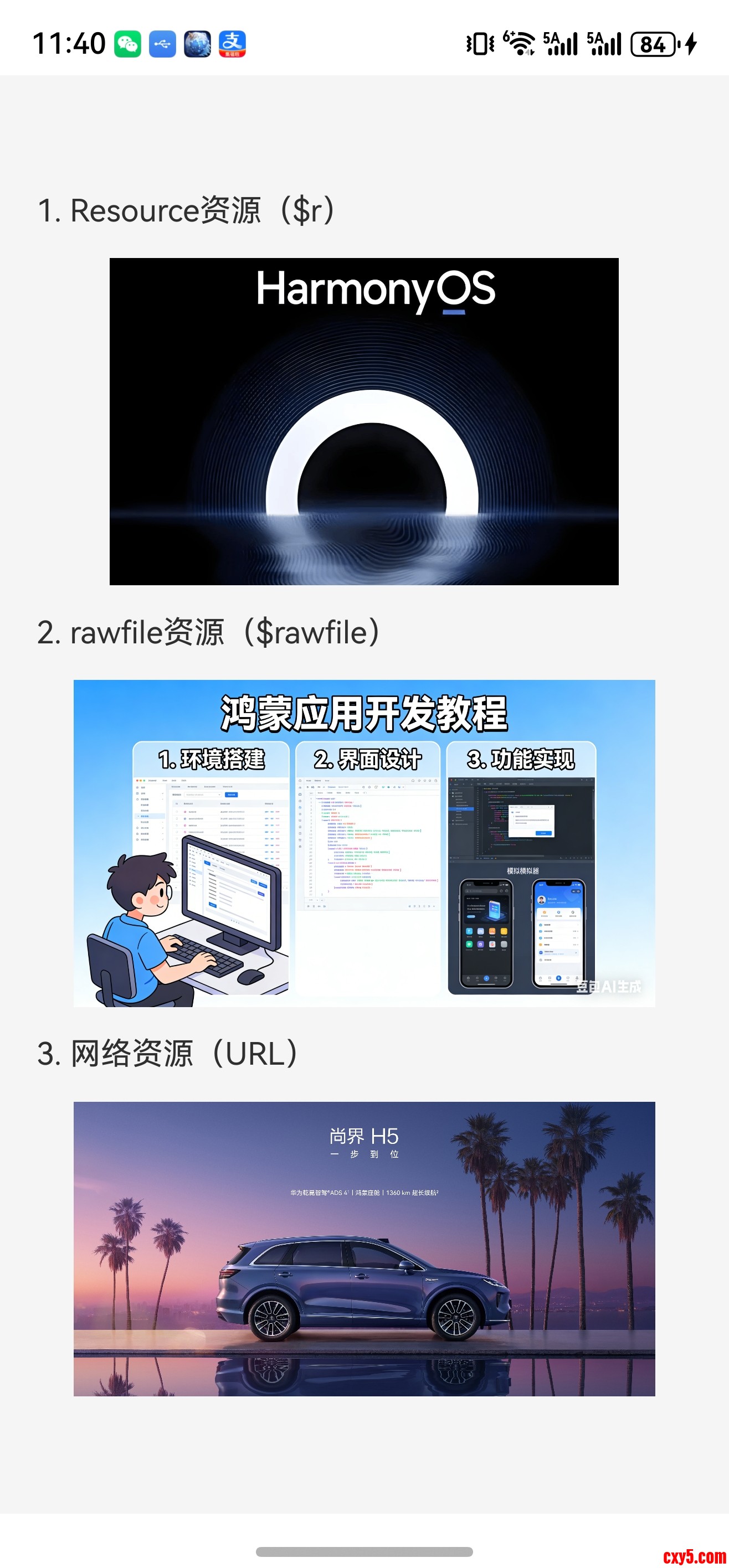
4.1 本地资源加载
(1)media 目录($r)
- Image($r('app.media.harmonyOS'))
- Image($rawfile('development.webp'))
步骤1:声明权限(module.json5)
- {
- "module": {
- "requestPermissions": [
- { "name": "ohos.permission.INTERNET" }
- ]
- }
- }
- Image('https://res.vmallres.com/FssCdnProxy/vmall_product_uom/pmsCdn/09EFE73EA18A31D59FF3D60F7F54566A.jpg')
- .width(300)
- .objectFit(ImageFit.Contain)
- @Entry
- @Component
- struct ImageSourcePage {
- build() {
- Column({ space: 15 }) {
- // 1. Resource资源
- Text("1. Resource资源($r)")
- .fontSize(16)
- .width('90%')
- .textAlign(TextAlign.Start);
- Image($r('app.media.harmonyOS'))
- .width(300)
- .aspectRatio(16/9)
- .objectFit(ImageFit.Contain)
- .backgroundColor('#f5f5f5');
- // 2. rawfile资源
- Text("2. rawfile资源($rawfile)")
- .fontSize(16)
- .width('90%')
- .textAlign(TextAlign.Start);
- Image($rawfile('development.webp'))
- .width(300)
- .aspectRatio(16/9)
- .objectFit(ImageFit.Cover)
- .backgroundColor('#f5f5f5');
- // 3. 网络资源
- Text("3. 网络资源(URL)")
- .fontSize(16)
- .width('90%')
- .textAlign(TextAlign.Start);
- Image('https://res.vmallres.com/FssCdnProxy/vmall_product_uom/pmsCdn/09EFE73EA18A31D59FF3D60F7F54566A.jpg')
- .width(300)
- .syncLoad(false) // 异步加载(默认值,避免阻塞UI)
- .objectFit(ImageFit.Contain)
- .backgroundColor('#f5f5f5');
- }
- .width('100%')
- .height('100%')
- .backgroundColor('#F5F5F5')
- .justifyContent(FlexAlign.Center);
- }
- }
4.4 媒体库图片加载(ImageMediaLibrary.ets)
- import { photoAccessHelper } from '@kit.MediaLibraryKit';
- import { BusinessError } from '@kit.BasicServicesKit';
- @Entry
- @Component
- struct ImageMediaLibrary {
- @State imgUris: string[] = [];
- // 获取图库图片URI
- getAllImages() {
- try {
- const selectOptions = new photoAccessHelper.PhotoSelectOptions();
- selectOptions.MIMEType = photoAccessHelper.PhotoViewMIMETypes.IMAGE_TYPE;
- selectOptions.maxSelectNumber = 3; // 最多选择3张
- const photoPicker = new photoAccessHelper.PhotoViewPicker();
- photoPicker.select(selectOptions)
- .then((result) => {
- this.imgUris = result.photoUris; // 存储图片URI
- })
- .catch((err: BusinessError) => {
- console.error(`图库选择失败:${err.code} - ${err.message}`);
- });
- } catch (err) {
- console.error(`图库访问异常:${err.message}`);
- }
- }
- build() {
- Column({ space: 20 }) {
- Button("选择图库图片")
- .onClick(() => this.getAllImages())
- .margin({ top: 20 });
- // 展示选中的图片
- ForEach(
- this.imgUris,
- (uri: string) => {
- Image(uri)
- .width(120)
- .height(120)
- .objectFit(ImageFit.Cover)
- .borderRadius(8)
- .backgroundColor('#f5f5f5');
- },
- (uri: string) => uri
- );
- }
- .width('100%')
- .height('100%')
- .backgroundColor('#F5F5F5');
- }
- }
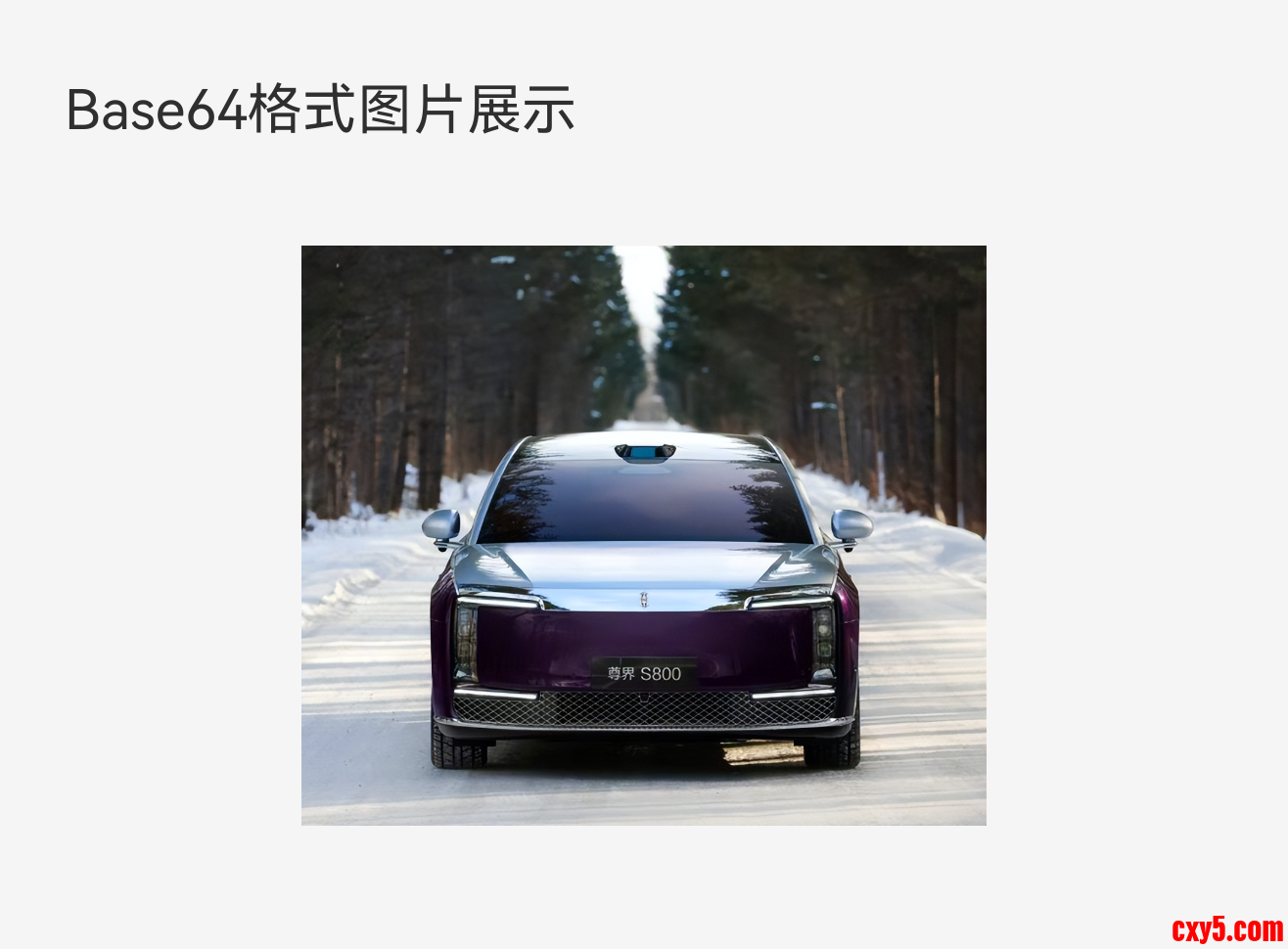
4.5 Base64 图片加载(Base64ImagePage.ets)
- import util from '@ohos.util';
- @Entry
- @Component
- struct Base64ImagePage {
- @State base64image: string = ''
- aboutToAppear(): void {
- // base64 字符串由于很长,所以我们将图片并转换为Base64字符串并加载
- this.base64image = this.imageToBase64('harmonyOSCar.jpeg')
- }
- /**
- * 读取rawfile图片并转换为Base64字符串
- * @param imageName rawfile下的图片文件名(含后缀)
- * @returns 标准Base64图片字符串
- */
- imageToBase64(imageName: string): string {
- try {
- // 1. 获取资源管理器
- const uiContext = this.getUIContext();
- const hostContext = uiContext.getHostContext();
- const resMgr = hostContext?.resourceManager;
- if (!resMgr) {
- console.error('获取resourceManager失败');
- return '';
- }
- // 2. 同步读取rawfile文件内容
- const imageData = resMgr.getRawFileContentSync(imageName)
- if (!imageData || imageData.length === 0) {
- console.error('读取图片数据为空');
- return '';
- }
- // 3. 转换为Base64字符串(确保入参类型正确)
- const base64Helper = new util.Base64Helper();
- const base64Str = base64Helper.encodeToStringSync(imageData);
- if (!base64Str) {
- console.error('Base64编码失败');
- return '';
- }
- // 4. 动态生成正确的MIME前缀(根据文件后缀匹配)
- const ext = imageName.split('.').pop()?.toLowerCase() || 'png';
- // 映射常见图片格式的MIME类型
- const mimeMap: Record<string, string> = {
- 'png': 'image/png',
- 'jpg': 'image/jpeg',
- 'jpeg': 'image/jpeg',
- 'webp': 'image/webp',
- 'gif': 'image/gif'
- };
- const mimeType = mimeMap[ext] || 'image/png';
- // 5. 拼接标准Base64图片格式
- const base64ImageStr = `data:${mimeType};base64,${base64Str}`;
- console.log('生成的Base64字符串:', base64ImageStr.substring(0, 50) + '...'); // 打印前50位验证
- return base64ImageStr;
- } catch (error) {
- console.error('图片转Base64失败:', error);
- return '';
- }
- }
- build() {
- Column({ space: 15 }) {
- Text("Base64格式图片展示")
- .fontSize(16)
- .width('90%')
- .textAlign(TextAlign.Start);
- Image(this.base64image)
- .width(200)
- .height(200)
- .objectFit(ImageFit.Contain)
- .backgroundColor('#f5f5f5');
- }
- .width('100%')
- .height('100%')
- .backgroundColor('#F5F5F5')
- .justifyContent(FlexAlign.Center);
- }
- }
4.6 数据源选型建议
数据源类型适用场景优势$r本地图标、常规图片适配强、使用简单$rawfile特殊格式、原始文件保留原始结构网络URL远程图片、头像、内容图动态更新、无需打包进应用媒体库URI相册选择图片安全、无需权限Base64小图标、内嵌图片无网络请求、加载快五、内容总结
- 核心定位:Image是鸿蒙系统最常用的图片展示组件,支持png、jpg、svg、gif等主流格式,可满足静态展示、圆角头像、图标改色等日常开发需求。
- 必掌握属性:width/height必须显式设置;objectFit是图片缩放核心,优先使用Contain和Cover;borderRadius实现圆角/圆形效果;renderMode+fillColor用于SVG图标改色。
- 多数据源加载:本地资源用$r/$rawfile;网络图片需配置INTERNET权限;媒体库图片使用PhotoViewPicker无需申请权限;Base64适合小型图标内嵌展示。
- 开发规范:网络图片建议配置alt占位图,媒体库选择优先使用系统控件,避免权限风险与异常崩溃。
六、代码仓库
- 工程名称:ImageApplication
- 仓库地址:https://gitee.com/HarmonyOS-UI-Basics/harmony-os-ui-basics.git
七、下节预告
下一节我们将学习 第十七节:Image组件进阶实战,内容包括:
- PixelMap 像素级图片处理
- 图片加载事件与异常兜底
- 分层图片、GIF 动画合成与播放
- 图片性能优化与内存管理
来源:程序园用户自行投稿发布,如果侵权,请联系站长删除
免责声明:如果侵犯了您的权益,请联系站长,我们会及时删除侵权内容,谢谢合作! |



 提升卡
提升卡 置顶卡
置顶卡 沉默卡
沉默卡 喧嚣卡
喧嚣卡 变色卡
变色卡 千斤顶
千斤顶 照妖镜
照妖镜