前言
在进行网络调试或设备管理时,我们经常需要知道局域网内有哪些设备在线。传统的 ping 命令逐个扫描太慢,而专业的扫描工具又显得大材小用。今天,我们通过一段 PowerShell 脚本,利用网络协议的底层特性,打造一个局域网扫描工具。
原理剖析:为什么这个脚本比普通 Ping 更快、更准?
大多数人认为扫描局域网就是简单地给每个 IP 发送 Ping 包。但这种方式有两大弊端:
- 效率低:等待不在线的设备超时会耗费大量时间。
- 不准确:许多设备(如开启防火墙的 Windows 电脑)会禁掉 ICMP 回显,导致明明在线却显示“离线”。
本脚本采用了 “异步探测 + ARP 表解析” 的双重机制,其工作原理流程图如下:
1. 异步探测(Asynchronous Probing)
脚本并没有等待每一个 Ping 的结果。它使用 SendPingAsync 向网段内的所有 254 个 IP 地址快速抛出探测包。
- 目的:我们并不在乎这些包是否真的收到了回复,其真正的目的是触发操作系统的 ARP 广播。
2. ARP 协议的妙用
当你的电脑尝试向局域网内某个 IP 发送数据时,它首先需要知道对方的 MAC 地址(物理地址)。即便对方防火墙拦截了 Ping 包,只要该设备存在,它通常也会对 ARP 请求做出响应。
- ARP 表:一旦设备响应,它的 IP 和 MAC 地址就会被记录在操作系统的 ARP 缓存表中。
3. 状态判定算法
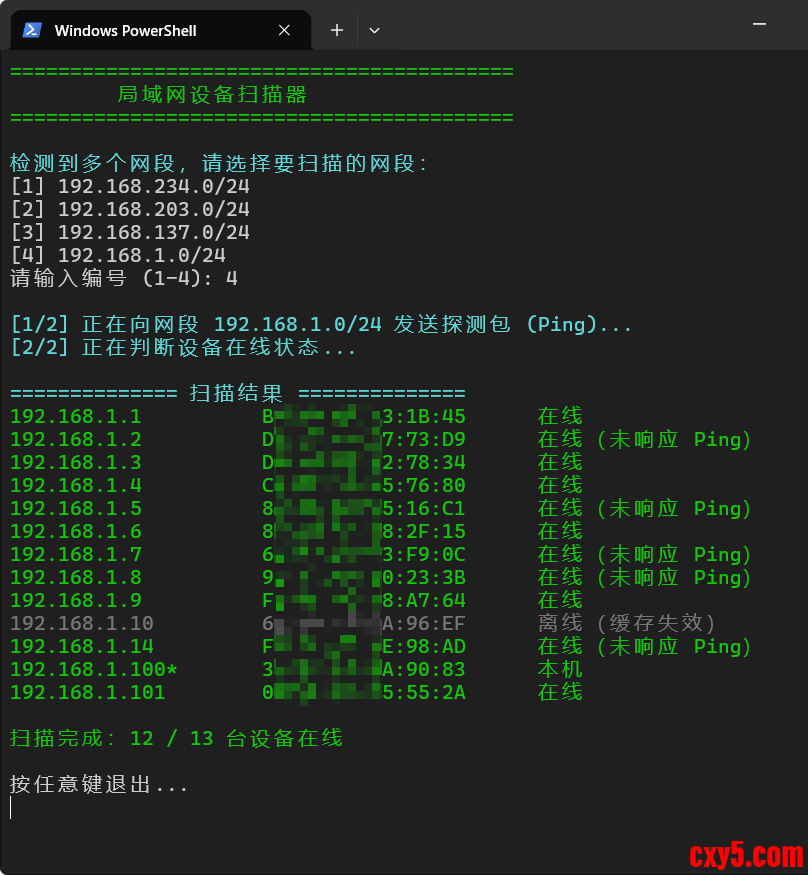
脚本通过 Get-NetNeighbor 检查系统的 ARP 记录,将状态分为三类判定:
- Ping 在线:设备响应了 ICMP。
- ARP 在线:设备虽不响应 Ping,但在 ARP 表中状态为 Reachable 或 Stale。
- 离线:ARP 表无记录或显示缓存失效。
完整代码
点击查看 PowerShell 脚本代码- Write-Host "==========================================" -ForegroundColor Green
- Write-Host " 局域网设备扫描器 " -ForegroundColor Green
- Write-Host "==========================================" -ForegroundColor Green
- # -----------------------------
- # 在线检测函数(核心)
- # -----------------------------
- function Test-DeviceOnline {
- param([string]$IP)
- $arp = Get-NetNeighbor -IPAddress $IP -ErrorAction SilentlyContinue
- if (-not $arp) {
- return @{ Online = $false; Reason = "无ARP" }
- }
- if ($arp.State -in 'Reachable','Stale','Delay','Probe') {
- if (Test-Connection $IP -Count 1 -Quiet -ErrorAction SilentlyContinue) {
- return @{ Online = $true; Reason = "Ping" }
- }
- return @{ Online = $true; Reason = "ARP在线" }
- }
- return @{ Online = $false; Reason = "缓存失效" }
- }
- # -----------------------------
- # 1. 获取 IPv4 网卡
- # -----------------------------
- $adapters = Get-NetIPAddress -AddressFamily IPv4 |
- Where-Object {
- $_.IPAddress -notmatch '^127\.|^169\.254\.' -and
- $_.PrefixLength -eq 24
- }
- if (-not $adapters) {
- Write-Host "未发现可用 IPv4 网卡" -ForegroundColor Red
- Read-Host
- exit
- }
- # -----------------------------
- # 2. 生成网段
- # -----------------------------
- $networks = $adapters.IPAddress |
- ForEach-Object {
- if ($_ -match '^(\d+\.\d+\.\d+)\.\d+$') {
- "$($Matches[1]).0/24"
- }
- } | Select-Object -Unique
- # -----------------------------
- # 3. 选择网段
- # -----------------------------
- if ($networks.Count -eq 1) {
- $network = $networks[0]
- Write-Host "`n仅检测到一个网段,自动使用:$network" -ForegroundColor Yellow
- }
- else {
- do {
- Write-Host "`n检测到多个网段,请选择要扫描的网段:" -ForegroundColor Cyan
- for ($i = 0; $i -lt $networks.Count; $i++) {
- Write-Host "[$($i + 1)] $($networks[$i])"
- }
- $choice = Read-Host "请输入编号 (1-$($networks.Count))"
- $valid = [int]::TryParse($choice, [ref]$null) -and
- $choice -ge 1 -and
- $choice -le $networks.Count
- if (-not $valid) {
- Write-Host "输入无效,请重新选择。" -ForegroundColor Red
- }
- } until ($valid)
- $network = $networks[$choice - 1]
- }
- $prefix = $network -replace '\.0/24',''
- # -----------------------------
- # 4. 快速建立 ARP 表
- # -----------------------------
- Write-Host "`n[1/2] 正在向网段 $network 发送探测包 (Ping)..." -ForegroundColor Cyan
- foreach ($i in 1..254) {
- $p = New-Object System.Net.NetworkInformation.Ping
- [void]$p.SendPingAsync("$prefix.$i", 800)
- }
- Start-Sleep -Seconds 1
- # -----------------------------
- # 5. 获取本机 IP → MAC
- # -----------------------------
- $localMapping = @{}
- Get-NetIPAddress -AddressFamily IPv4 |
- Where-Object { $_.IPAddress -notmatch '^127\.|^169\.254\.' } |
- ForEach-Object {
- $adapter = Get-NetAdapter -InterfaceIndex $_.InterfaceIndex -ErrorAction SilentlyContinue
- if ($adapter) {
- $localMapping[$_.IPAddress] = $adapter.MacAddress.Replace("-", ":").ToUpper()
- }
- }
- # -----------------------------
- # 6. 解析 ARP 表
- # -----------------------------
- $arpRegex = '(?<IP>\d{1,3}(\.\d{1,3}){3})\s+(?<MAC>([0-9a-f]{2}[:-]){5}[0-9a-f]{2})'
- $globalArp = arp -a
- $potentialIPs = @()
- foreach ($line in $globalArp) {
- if ($line -match $arpRegex) {
- $ip = $Matches.IP
- $mac = $Matches.MAC.ToUpper().Replace("-", ":")
- if ($ip.StartsWith("$prefix.") -and
- -not $localMapping.ContainsKey($ip) -and
- $ip -notmatch '\.255$') {
- $potentialIPs += [PSCustomObject]@{
- IP = $ip
- MAC = $mac
- }
- }
- }
- }
- # -----------------------------
- # 7. 构建结果
- # -----------------------------
- $finalList = @()
- # 本机
- foreach ($ip in $localMapping.Keys) {
- if ($ip.StartsWith("$prefix.")) {
- $finalList += [PSCustomObject]@{
- IP = "$ip*"
- MAC = $localMapping[$ip]
- IsOnline = $true
- Reason = "本机"
- RawIP = $ip
- }
- }
- }
- Write-Host "[2/2] 正在判断设备在线状态..." -ForegroundColor Cyan
- foreach ($dev in $potentialIPs | Select-Object -Unique IP, MAC) {
- $result = Test-DeviceOnline $dev.IP
- $finalList += [PSCustomObject]@{
- IP = $dev.IP
- MAC = $dev.MAC
- IsOnline = $result.Online
- Reason = $result.Reason
- RawIP = $dev.IP
- }
- }
- # -----------------------------
- # 8. 输出
- # -----------------------------
- Write-Host "`n============== 扫描结果 ==============" -ForegroundColor Cyan
- $sorted = $finalList | Sort-Object {[version]$_.RawIP}
- foreach ($item in $sorted) {
- $status = if ($item.IsOnline) {
- switch ($item.Reason) {
- "Ping" { "在线" }
- "ARP在线" { "在线(未响应 Ping)" }
- "本机" { "本机" }
- default { "在线" }
- }
- } else {
- switch ($item.Reason) {
- "缓存失效" { "离线(缓存失效)" }
- default { "离线" }
- }
- }
- $line = "{0,-20} {1,-22} {2}" -f $item.IP, $item.MAC, $status
- if ($item.IsOnline) {
- Write-Host $line -ForegroundColor Green
- } else {
- Write-Host $line -ForegroundColor DarkGray
- }
- }
- $online = ($finalList | Where-Object { $_.IsOnline }).Count
- $total = $finalList.Count
- Write-Host "`n扫描完成:$online / $total 台设备在线" -ForegroundColor Green
- Write-Host "`n按任意键退出..."
- $null = [System.Console]::ReadKey()
网段自动识别
脚本会自动排除 127.0.0.1(回环地址)和 169.254.x.x(自动私有 IP),并智能识别当前活跃的网段,无需用户手动输入 IP 范围。
结果美化输出
为了提升使用体验,脚本使用了格式化操作符 -f:- $line = "{0,-20} {1,-22} {2}" -f $item.IP, $item.MAC, $status
如何使用?
- 将脚本代码保存为 .ps1 文件,编码UTF8 BOM。也可通过LANScanner局域网扫描器.zip链接进行下载
- 使用powershell.exe运行,建议使用powershell文件关联后直接运行。
运行截图
总结
这个脚本不仅是一个工具,更是对 Layer 2(数据链路层) 和 Layer 3(网络层) 协同工作的一次实践。通过利用系统底层的 ARP 缓存,我们实现了比传统扫描器更高效、更具穿透力的探测效果。
来源:程序园用户自行投稿发布,如果侵权,请联系站长删除
免责声明:如果侵犯了您的权益,请联系站长,我们会及时删除侵权内容,谢谢合作! |


 提升卡
提升卡 置顶卡
置顶卡 沉默卡
沉默卡 喧嚣卡
喧嚣卡 变色卡
变色卡 千斤顶
千斤顶 照妖镜
照妖镜