想不想让你的终端变得更漂亮且实用呢,来试试这款神器--Oh My Zsh。
安装完成后,每次在命令提示符中敲击键盘,你都能体验到数百个强大的插件和精美的主题。
https://github.com/ohmyzsh/ohmyzsh
先决条件
- 操作系统:Linux、macOS、Windows(WSL2)
- Zsh:v4.3.9 或更高版本(运行 zsh --version 命令确认)
- Linux安装:apt install zsh
- macOS安装:brew install zsh
- curl 或 wget
- Git,推荐版本 2.4.11 或更高版本
- Linux安装:apt install git
- macOS安装:brew install git
OhMyZsh是Zsh的一种管理工具,在安装OhMyZsh之前首先得安装Zsh。
Git 用来克隆(下载)其代码仓库并管理插件/主题。
brew查看之前文章《用Mac的朋友们,你们都在使用Homebrew了吗》。
基本安装
命令行安装- # curl方式
- sh -c "$(curl -fsSL https://raw.githubusercontent.com/ohmyzsh/ohmyzsh/master/tools/install.sh)"
- # wget方式
- sh -c "$(wget -O- https://raw.githubusercontent.com/ohmyzsh/ohmyzsh/master/tools/install.sh)"
- # curl方式
- sh -c "$(curl -fsSL https://install.ohmyz.sh/)"
- # wget方式
- sh -c "$(wget -O- https://install.ohmyz.sh/)"
自带插件
Oh My Zsh 自带大量插件,可以到~/.oh-my-zsh/plugins目录查看。
插件的详细介绍可以去 https://github.com/ohmyzsh/ohmyzsh/wiki/Plugins 查看。
启用插件
编辑 vi ~/.zshrc,添加插件名称以启用插件。注意:插件之间用空格(空格、制表符、换行符等)分隔。请勿使用逗号,否则插件会出错
第三方插件
https://github.com/zsh-users
推荐两款我自用的:
- zsh-autosuggestions(自动补全)
- zsh-syntax-highlighting(语法高亮)
下载插件
- # zsh-autosuggestions
- git clone https://github.com/zsh-users/zsh-autosuggestions ${ZSH_CUSTOM:-~/.oh-my-zsh/custom}/plugins/zsh-autosuggestions
- # zsh-syntax-highlighting
- git clone https://github.com/zsh-users/zsh-syntax-highlighting.git ${ZSH_CUSTOM:-~/.oh-my-zsh/custom}/plugins/zsh-syntax-highlighting
- plugins=(
- # ...
- zsh-autosuggestions
- zsh-syntax-highlighting
- )
Oh My Zsh 自带的主题非常丰富,可以到~/.oh-my-zsh/themes目录查看。
主题对应的界面效果可以到 https://github.com/ohmyzsh/ohmyzsh/wiki/Themes 查看
启用主题
编辑 vi ~/.zshrc,更改你选择的主题名称。第三方主题
如果自带主题没有满意的,你也可以使用第三方主题。
https://github.com/romkatv/powerlevel10k,有人称为此主题为天和之作,不过此主题已经处于非活跃的状态了。
安装字体
https://github.com/romkatv/powerlevel10k#meslo-nerd-font-patched-for-powerlevel10k
- 下载字体文件(ttf ):
- [MesloLGS NF Regular.ttf](https://github.com/romkatv/powerlevel10k-media/raw/master/MesloLGS NF Regular.ttf)
- [MesloLGS NF Bold.ttf](https://github.com/romkatv/powerlevel10k-media/raw/master/MesloLGS NF Bold.ttf)
- [MesloLGS NF Italic.ttf](https://github.com/romkatv/powerlevel10k-media/raw/master/MesloLGS NF Italic.ttf)
- [MesloLGS NF Bold Italic.ttf](https://github.com/romkatv/powerlevel10k-media/raw/master/MesloLGS NF Bold Italic.ttf)
- 双击文件安装字体
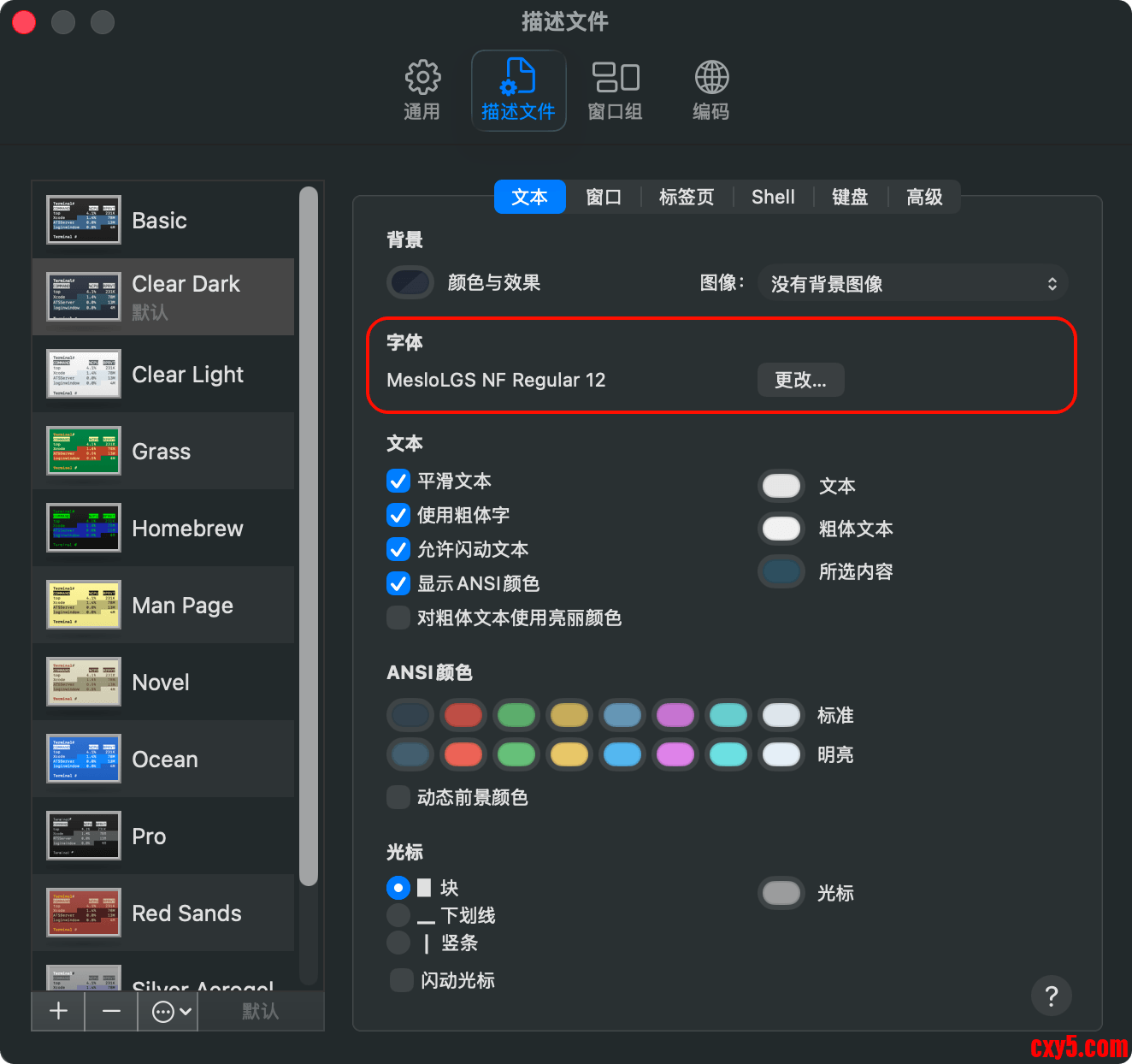
- 配置终端字体
- Apple Terminal:打开终端 → 偏好设置 → 描述文件 → 文本,点击字体下的“更改” ,然后选择字体系列。MesloLGS NF
安装主题
终端执行:- git clone --depth=1 https://github.com/romkatv/powerlevel10k.git "${ZSH_CUSTOM:-$HOME/.oh-my-zsh/custom}/themes/powerlevel10k"
- git clone --depth=1 https://gitee.com/romkatv/powerlevel10k.git "${ZSH_CUSTOM:-$HOME/.oh-my-zsh/custom}/themes/powerlevel10k"
- ZSH_THEME="powerlevel10k/powerlevel10k"
终端执行(重开终端或执行source ~/.zshrc):终端交互式,根据自己喜好选择即可。
卸载Oh My Zsh
如果安装后你觉得不好用,卸载也很简单。资源监控
现在你的终端看上去已经很酷炫了,但在使用top时会显得很平庸,你可以安装一个更好看的工具btop。
安装
https://github.com/aristocratos/btop- # Linux
- dnf install btop
- # macOS
- brew install btop
终端执行:
来源:程序园用户自行投稿发布,如果侵权,请联系站长删除
免责声明:如果侵犯了您的权益,请联系站长,我们会及时删除侵权内容,谢谢合作! |
|
|
|
|
|
|
相关推荐
|
|
|




 提升卡
提升卡 置顶卡
置顶卡 沉默卡
沉默卡 喧嚣卡
喧嚣卡 变色卡
变色卡 千斤顶
千斤顶 照妖镜
照妖镜