日志还有使用技巧?直接写不就行了?这还需要学?
实际上,据笔者观察,很多 .NET 开发者都有不良习惯,例如:
- 日志里面大量使用中文编写
- 日志没统一格式,到处拼接参数、数据
- 日志没有输出统一格式,导致采集、分析困难
- 日志喜欢在各类中间件、模块中定义自定义拦截日志,导致性能消耗严重
- 不知道 .NET 中日志有上下文和作用域,导致多条日志没有串联起来,查找日志困难
- 不了解日志系统,导致生成、采集的日志价值不大,分析问题低效
根据笔者的带队经验,基于很多 .NET 开发者的习惯,所以写了本文。
本文目录:
- 在 ASP.NET Core 中使用日志
- 上下文属性和作用域
- 格式化日志
- 非侵入式日志
- Serilog 日志格式模板
.NET 中的日志使用技巧
Serilog 是 .NET 社区中使用最广泛的日志框架,所以在日志部分,笔者将会围绕 Serilog 讲解其使用方法以及如何解决项目的日志需求。
示例项目在 Demo2.Console 中。
创建一个控制台程序,引入两个包:- Serilog.Sinks.Console
- Serilog.Sinks.File
除此之外,还有 Serilog.Sinks.Elasticsearch、Serilog.Sinks.RabbitMQ 等。Serilog 提供了用于将日志事件以各种格式写入存储的接收器。下面列出的许多接收器都是由更广泛的 Serilog 社区开发和支持的;https://github.com/serilog/serilog/wiki/Provided-Sinks
可以直接使用代码配置 Serilog:- private static Serilog.ILogger GetLogger()
- {
- const string LogTemplate = "{SourceContext} {Scope} {Timestamp:HH:mm} [{Level}] {Message:lj} {Properties:j} {NewLine}{Exception}";
- var logger = new LoggerConfiguration()
- .Enrich.WithMachineName()
- .Enrich.WithThreadId()
- .Enrich.FromLogContext()
- #if DEBUG
- .MinimumLevel.Debug()
- #else
- .MinimumLevel.Information()
- #endif
- .WriteTo.Console(outputTemplate: LogTemplate)
- .WriteTo.File("log.txt", rollingInterval: RollingInterval.Day, outputTemplate: LogTemplate)
- .CreateLogger();
- return logger;
- }
- private static Serilog.ILogger GetJsonLogger()
- {
- IConfiguration configuration = new ConfigurationBuilder()
- .SetBasePath(AppContext.BaseDirectory)
- .AddJsonFile(path: "serilog.json", optional: true, reloadOnChange: true)
- .Build();
- if (configuration == null)
- {
- throw new ArgumentNullException($"未能找到 serilog.json 日志配置文件");
- }
- var logger = new LoggerConfiguration()
- .ReadFrom.Configuration(configuration)
- .CreateLogger();
- return logger;
- }
- {
- "Serilog": {
- "Using": [ "Serilog.Sinks.Console", "Serilog.Sinks.File" ],
- "MinimumLevel": {
- "Default": "Debug"
- },
- "Enrich": [ "FromLogContext", "WithMachineName", "WithThreadId" ],
- "WriteTo": [
- {
- "Name": "Console",
- "Args": {
- "outputTemplate": "{SourceContext} {Scope} {Timestamp:HH:mm} [{Level}] {Message:lj} {Properties:j} {NewLine}{Exception}"
- }
- },
- {
- "Name": "File",
- "Args": {
- "path": "logs/log-.txt",
- "rollingInterval": "Day",
- "outputTemplate": "{SourceContext} {Scope} {Timestamp:HH:mm} [{Level}] {Message:lj} {Properties:j} {NewLine}{Exception}"
- }
- }
- ]
- }
- }
引入 Serilog.Extensions.Logging 包。- private static Microsoft.Extensions.Logging.ILogger InjectLogger()
- {
- var logger = GetJsonLogger();
- var ioc = new ServiceCollection();
- ioc.AddLogging(builder => builder.AddSerilog(logger: logger, dispose: true));
- var loggerProvider = ioc.BuildServiceProvider().GetRequiredService<ILoggerProvider>();
- return loggerProvider.CreateLogger("Program");
- }
- static void Main()
- {
- var log1 = GetLogger();
- log1.Debug("溪源More、痴者工良");
- var log2 = GetJsonLogger();
- log2.Debug("溪源More、痴者工良");
- var log3 = InjectLogger();
- log3.LogDebug("溪源More、痴者工良");
- }
- 20:50 [Debug] 溪源More、痴者工良 {"MachineName": "WIN-KQDULADM5LA", "ThreadId": 1}
- 20:50 [Debug] 溪源More、痴者工良 {"MachineName": "WIN-KQDULADM5LA", "ThreadId": 1}
- 20:50 [Debug] 溪源More、痴者工良 {"MachineName": "WIN-KQDULADM5LA", "ThreadId": 1}
示例项目在 Demo2.Api 中。
新建一个 ASP.NET Core API 新项目,引入 Serilog.AspNetCore 包。
在 Program 中添加代码注入 Serilog 。- var builder = WebApplication.CreateBuilder(args);
- Log.Logger = new LoggerConfiguration()
- .ReadFrom.Configuration(builder.Configuration)
- .CreateLogger();
- builder.Host.UseSerilog(Log.Logger);
- //builder.Host.UseSerilog();
启动程序后,尝试访问 API 接口,会打印示例如下的日志:- Microsoft.AspNetCore.Hosting.Diagnostics 20:32 [Information] Request finished HTTP/1.1 GET http://localhost:5148/WeatherForecast - - - 200 - application/json;+charset=utf-8 1029.4319ms {"ElapsedMilliseconds": 1029.4319, "StatusCode": 200, "ContentType": "application/json; charset=utf-8", "ContentLength": null, "Protocol": "HTTP/1.1", "Method": "GET", "Scheme": "http", "Host": "localhost:5148", "PathBase": "", "Path": "/WeatherForecast", "QueryString": "", "EventId": {"Id": 2}, "RequestId": "0HMOONQO5ONKU:00000003", "RequestPath": "/WeatherForecast", "ConnectionId": "0HMOONQO5ONKU"}
- app.UseSerilogRequestLogging(options =>
- {
- options.EnrichDiagnosticContext = (diagnosticContext, httpContext) =>
- {
- diagnosticContext.Set("TraceId", httpContext.TraceIdentifier);
- };
- });
- HTTP GET /WeatherForecast responded 200 in 181.9992 ms {"TraceId": "0HMSD1OUG2DHG:00000003" ... ...
如果需要打印 http 的请求和响应日志,我们可以使用 ASP.NET Core 自带的 HttpLoggingMiddleware 中间件。
首先注入请求日志拦截服务。- builder.Services.AddHttpLogging(logging =>
- {
- logging.LoggingFields = HttpLoggingFields.All;
- // 避免打印大量的请求和响应内容,只打印 4kb
- logging.RequestBodyLogLimit = 4096;
- logging.ResponseBodyLogLimit = 4096;
- });
可以将HttpLogging 中间件放在 Swagger、Static 之后,这样的话可以避免打印哪些用处不大的请求,只保留 API 请求相关的日志。HttpLoggingMiddleware 中的日志模式是以 Information 级别打印的,在项目上线之后,如果每个请求都被打印信息的话,会降低系统性能,因此我们可以在配置文件中覆盖配置,避免打印普通的日志。- "Microsoft.AspNetCore.HttpLogging.HttpLoggingMiddleware": "Information"
示例项目在 Demo2.ScopeLog 中。
日志范围注意事项
Microsoft.Extensions.Logging.Abstractions 提供 BeginScopeAPI,可用于添加任意属性以记录特定代码区域内的事件。
解释其作用
API 有两种形式:- IDisposable BeginScope<TState>(TState state)
- IDisposable BeginScope(this ILogger logger, string messageFormat, params object[] args)
- {SourceContext} {Timestamp:HH:mm} [{Level}] (ThreadId:{ThreadId}) {Message}{NewLine}{Exception} {Scope}
- static void Main()
- {
- var logger = GetLogger();
- using (logger.BeginScope("Checking mail"))
- {
- // Scope is "Checking mail"
- logger.LogInformation("Opening SMTP connection");
- using (logger.BeginScope("Downloading messages"))
- {
- // Scope is "Checking mail" -> "Downloading messages"
- logger.LogError("Connection interrupted");
- }
- }
- }
而在 Serilog 中,除了支持上述接口外,还通过 LogContext 提供了在日志中注入上下文属性的方法。其作用是添加属性之后,使得在其作用域之内打印日志时,日志会携带这些上下文属性信息。- using (LogContext.PushProperty("Test", 1))
- {
- // Process request; all logged events will carry `RequestId`
- Log.Information("{Test} Adding {Item} to cart {CartId}", 1, 1);
- }
- using (LogContext.PushProperty("A", 1))
- {
- log.Information("Carries property A = 1");
- using (LogContext.PushProperty("A", 2))
- using (LogContext.PushProperty("B", 1))
- {
- log.Information("Carries A = 2 and B = 1");
- }
- log.Information("Carries property A = 1, again");
- }
- using (LogContext.PushProperty("Test1", 1))
- using (LogContext.PushProperty("Test2", 2))
- {
- }
- public async Task InvokeAsync(HttpContext context, RequestDelegate next)
- {
- var enrichers = new List<ILogEventEnricher>();
- if (!string.IsNullOrEmpty(correlationId))
- {
- enrichers.Add(new PropertyEnricher(_options.EnricherPropertyNames.CorrelationId, correlationId));
- }
- using (LogContext.Push(enrichers.ToArray()))
- {
- await next(context);
- }
- }
格式化日志
引入 Serilog.Formatting.Compact 库。
本小节主要讲解三个知识点:
在打印日志是,我们往往想将一个对象打印到日志中,直接使用参数标识打印是不可行的:- logger.LogWarning("Test log {0}",new MyClass { A = "1",B = "2"});
在 Serilog.Formatting.Compact 包中提供了一种格式化对象打印到日志的功能,我们只需要在标识符位置加上 @ 即可。- logger.LogWarning("Test log {@Message}",new MyClass { A = "1",B = "2"});
对于字典类型也可以起效:- logger.LogWarning("Test log {@Message}",new Dictionary<string, string>() { { "A","1"},{ "B","2"} });
- static void Main()
- {
- IConfiguration configuration = new ConfigurationBuilder()
- .SetBasePath(AppContext.BaseDirectory)
- .AddJsonFile(path: "serilog.json", optional: true, reloadOnChange: true)
- .Build();
- if (configuration == null)
- {
- throw new ArgumentNullException($"未能找到 serilog.json 日志配置文件");
- }
- var loggerBuilder = new LoggerConfiguration()
- .ReadFrom.Configuration(configuration)
- .WriteTo.Console(new CompactJsonFormatter())
- .CreateLogger();
- var services = new ServiceCollection();
- services.AddLogging(s =>
- {
- s.AddSerilog(loggerBuilder);
- });
- var ioc = services.BuildServiceProvider();
- var logger = ioc.GetRequiredService<ILogger<Program>>();
- logger.LogWarning("Test log {@Message}", new Dictionary<string, string>() { { "A", "1" }, { "B", "2" } });
- }
这样搞其实也很简单,只需要去掉默认的日志模板即可:
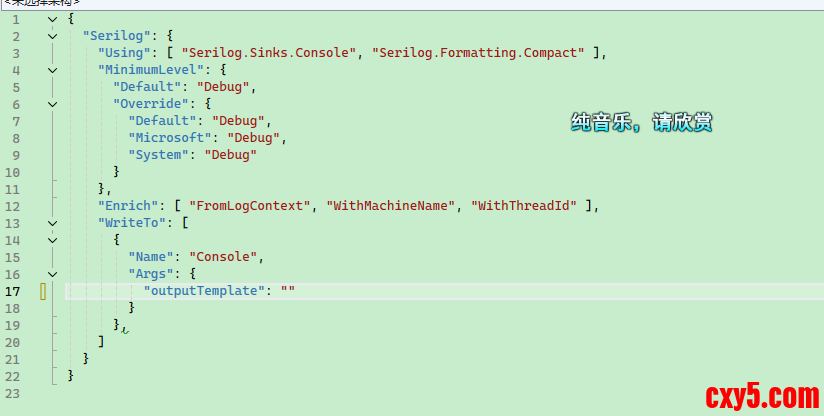

在 ES 系统中,每个字段都将会被自动索引,我们可以在日志系统中方便处理各个字段的值。
要想自定义格式化日志也很简单,例如我们要在现在的 json 日志中,前后加上 []:- public class MyTextFormatter : ITextFormatter
- {
- private readonly JsonValueFormatter _valueFormatter;
- public MyTextFormatter(JsonValueFormatter? valueFormatter = null)
- {
- _valueFormatter = valueFormatter ?? new JsonValueFormatter("$type");
- }
- /// <inheritdoc/>
- public void Format(LogEvent logEvent, TextWriter output)
- {
- output.Write('[');
- CompactJsonFormatter.FormatEvent(logEvent, output, _valueFormatter);
- output.Write(']');
- output.WriteLine();
- }
- }
非侵入式的日志有多种方法,比如 ASP.NET Core 中间件管道,或者使用 AOP 框架。
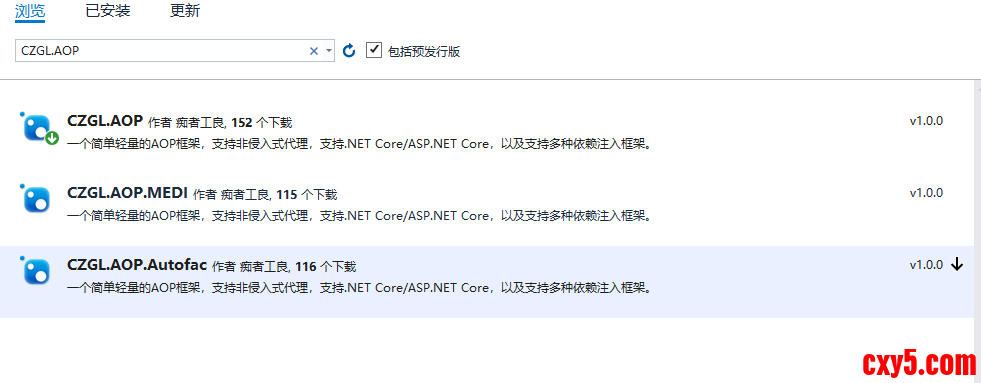
这里可以使用笔者开源的 CZGL.AOP 框架,Nuget 中可以搜索到。
示例项目在 Demo2.AopLog 中。
有一个类型,我们需要在执行 SayHello 之前和之后打印日志,将参数和返回值记录下来。- public class Hello
- {
- public virtual string SayHello(string content)
- {
- var str = $"Hello,{content}";
- return str;
- }
- }
Before 会在被代理的方法执行前或被代理的属性调用时生效,你可以通过 AspectContext 上下文,获取、修改传递的参数。
After 在方法执行后或属性调用时生效,你可以通过上下文获取、修改返回值。- public class LogAttribute : ActionAttribute
- {
- public override void Before(AspectContext context)
- {
- Console.WriteLine($"{context.MethodInfo.Name} 函数被执行前");
- foreach (var item in context.MethodValues)
- Console.WriteLine(item.ToString());
- }
- public override object After(AspectContext context)
- {
- Console.WriteLine($"{context.MethodInfo.Name} 函数被执行后");
- Console.WriteLine(context.MethodResult.ToString());
- return context.MethodResult;
- }
- }
- [Interceptor]
- public class Hello
- {
- [Log]
- public virtual string SayHello(string content)
- {
- var str = $"Hello,{content}";
- return str;
- }
- }
- static void Main(string[] args)
- {
- Hello hello = AopInterceptor.CreateProxyOfClass<Hello>();
- hello.SayHello("any one");
- Console.Read();
- }
- SayHello 函数被执行前
- any one
- SayHello 函数被执行后
- Hello,any one
CZGL.AOP 可以通过 .NET Core 自带的依赖注入框架和 Autofac 结合使用,自动代理 CI 容器中的服务。这样不需要 AopInterceptor.CreateProxyOfClass 手动调用代理接口。
CZGL.AOP 代码是开源的,可以参考笔者另一篇博文:
https://www.cnblogs.com/whuanle/p/13160139.html
Serilog 日志格式模板
下面给出笔者最常使用的 Serilog 日志格式模板,笔者在个人项目以及生产项目中大量使用。
json格式的配置模板如下:- {
- "Serilog": {
- "Using": [
- "Serilog.Sinks.Console"
- ],
- "MinimumLevel": {
- "Default": "Information",
- "Override": {
- "Microsoft.AspNetCore.HttpLogging": "Information",
- "ProtoBuf.Grpc.Server.ServicesExtensions.CodeFirstServiceMethodProvider": "Warning",
- "Microsoft.EntityFrameworkCore": "Information",
- "Microsoft.AspNetCore": "Warning",
- "System.Net.Http.HttpClient.TenantManagerClient.LogicalHandler": "Warning",
- "Microsoft.EntityFrameworkCore.Database.Command.CommandExecuted": "Warning",
- "System": "Information",
- "Microsoft": "Information",
- "Grpc": "Information",
- "MySqlConnector": "Information"
- }
- },
- "WriteTo": [
- {
- "Name": "Console",
- "Args": {
- "outputTemplate": "{SourceContext} {Scope} {Timestamp:HH:mm} [{Level}]{NewLine}{Properties:j}{NewLine}{Message:lj} {Exception} {NewLine}"
- }
- }
- ],
- "Enrich": [
- "FromLogContext",
- "WithMachineName",
- "WithThreadId"
- ]
- }
- }
- Serilog:
- Using:
- - "Serilog.Sinks.Console"
- MinimumLevel:
- Default: Information
- Override:
- Microsoft.AspNetCore.HttpLogging: Information
- ProtoBuf.Grpc.Server.ServicesExtensions.CodeFirstServiceMethodProvider: Warning
- Microsoft.EntityFrameworkCore: Information
- Microsoft.AspNetCore: Warning
- System.Net.Http.HttpClient.TenantManagerClient.LogicalHandler: Warning
- Microsoft.EntityFrameworkCore.Database.Command.CommandExecuted: Warning
- System: Information
- Microsoft: Information
- Grpc: Information
- MySqlConnector: Information
- WriteTo:
- - Name: Console
- Args:
- outputTemplate: "{SourceContext} {Scope} {Timestamp:HH:mm} [{Level}]{NewLine}{Properties:j}{NewLine}{Message:lj} {Exception} {NewLine}"
- Enrich:
- - FromLogContext
- - WithMachineName
- - WithThreadId
- // 配置日志.
- builder.Logging.ClearProviders();
- builder.Host.UseSerilog((ctx, services, configuration) =>
- {
- configuration.ReadFrom.Services(services);
- #if DEBUG
- // 在本地不需要特定格式化
- configuration.ReadFrom.Configuration(ctx.Configuration)
- // 自定义部分日志的格式
- .Enrich.With(new MyLogEnricher());
- #else
- // 使用 json 收集时,忽略日志模板
- ctx.Configuration["Serilog:WriteTo:0:Args:outputTemplate"] = "";
- // 以 json 格式化输出
- configuration.WriteTo.Console(new RenderedCompactJsonFormatter())
- .ReadFrom.Configuration(ctx.Configuration)
- // 自定义部分日志的格式
- .Enrich.With(new MyLogEnricher());
- #endif
- });
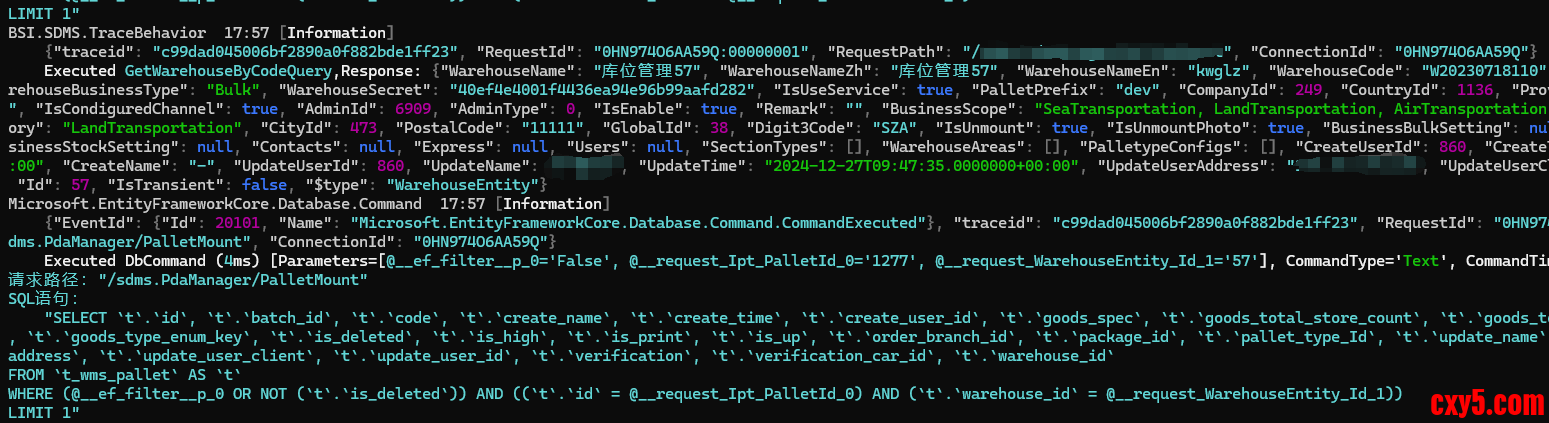
但是在系统部署后,特别在微服务场景下,会使用各类工具收集日志,例如最常见的 ELK 日志套件,那么项目输出的日志是 json 时,收集最方便,解析也是最方便的。
所以,我们需要重定向输出日志为 json 格式,可以使用:- .WriteTo.Console(new RenderedCompactJsonFormatter())
- configuration
- .ReadFrom.Configuration(ctx.Configuration)
- ↓ ↓ ↓
- configuration
- .WriteTo.Console(new RenderedCompactJsonFormatter()) // 多了这一句
- .ReadFrom.Configuration(ctx.Configuration)
下面是四种格式化器的性能测试:
FormatterMedianStdDevScaledJsonFormatter11.2775 µs0.0682 µs1.00CompactJsonFormatter6.0315 µs0.0429 µs0.53JsonFormatter(renderMessage: true)13.7585 µs0.1194 µs1.22RenderedCompactJsonFormatter7.0680 µs0.0605 µs0.63
建议大家使用 RenderedCompactJsonFormatter。
对于 JsonFormatter 和 CompactJsonFormatter ,只在长度上差一点,CompactJsonFormatter 的压缩性比较好,但是阅读起来不方便,这两者都是将参数模板和参数值分开存储的。
以该日志为例:- _logger.Information("Hello, {@User}, {N:x8} at {Now}", new { Name = "nblumhardt", Tags = new[] { 1, 2, 3 } }, 123, DateTime.Now);
- {
- "Timestamp": "2016-06-07T13:44:57.8532799+10:00",
- "Level": "Information",
- "MessageTemplate": "Hello, {@User}, {N:x8} at {Now}",
- "Properties": {
- "User": {
- "Name": "nblumhardt",
- "Tags": [1, 2, 3]
- },
- "N": 123,
- "Now": "2016-06-07T13:44:57.8532799+10:00"
- },
- "Renderings": {
- "N": [{
- "Format": "x8",
- "Rendering": "0000007b"
- }]
- }
- }
- {
- "@t": "2016-06-07T03:44:57.8532799Z",
- "@mt": "Hello, {@User}, {N:x8} at {Now}",
- "@r": ["0000007b"],
- "User": {
- "Name": "nblumhardt",
- "Tags": [1, 2, 3]
- },
- "N": 123,
- "Now": "2016-06-07T13:44:57.8532799+10:00"
- }
那么对于 JsonFormatter(renderMessage: true) 和 RenderedCompactJsonFormatter 则是上面两者的重定向(格式化)版本,会直接在原字符串里面格式化。
JsonFormatter(renderMessage: true) 格式:- {
- "Timestamp": "2024-12-30T08:54:32.2909994+08:00",
- "Level": "Information",
- "MessageTemplate": "Hello, {@User}, {N:x8} at {Now}",
- "RenderedMessage": "Hello, { Name: "nblumhardt", Tags: [1, 2, 3] }, 0000007b at 12/30/2024 08:54:32",
- "Properties": {
- "User": {
- "Name": "nblumhardt",
- "Tags": [1, 2, 3]
- },
- "N": 123,
- "Now": "2024-12-30T08:54:32.2886810+08:00",
- "SourceContext": "BSI.SDMS.Api.Program"
- },
- "Renderings": {
- "N": [{
- "Format": "x8",
- "Rendering": "0000007b"
- }]
- }
- }
- {
- "@t": "2024-12-30T00:53:09.8507927Z",
- "@m": "Hello, { Name: "nblumhardt", Tags: [1, 2, 3] }, 0000007b at 12/30/2024 08:53:09",
- "@i": "4e2159b8",
- "User": {
- "Name": "nblumhardt",
- "Tags": [1, 2, 3]
- },
- "N": 123,
- "Now": "2024-12-30T08:53:09.8484345+08:00",
- "SourceContext": "BSI.SDMS.Api.Program"
- }
免责声明:如果侵犯了您的权益,请联系站长,我们会及时删除侵权内容,谢谢合作! |





 提升卡
提升卡 置顶卡
置顶卡 沉默卡
沉默卡 喧嚣卡
喧嚣卡 变色卡
变色卡 千斤顶
千斤顶 照妖镜
照妖镜